
Guardian API#
The Guardian API provides a feature-rich method of interacting with Guardian's core features in a programmatic way. The API can be used to automate a variety of processes and enable greater flexibility when monitoring your data.
Applies to: Guardian Classic
Tip
To access the complete set of Guardian API documentation, see Guardian API (v2).
Service API key and Secret key#
An API access key and a secret key are required to interact with all endpoints. A secret key is generated when you enable or disable the Guardian API. Only one secret key is generated per account. The corresponding API access key can be retrieved during this process, see below for more information.
To access your account keys, complete the following steps:
-
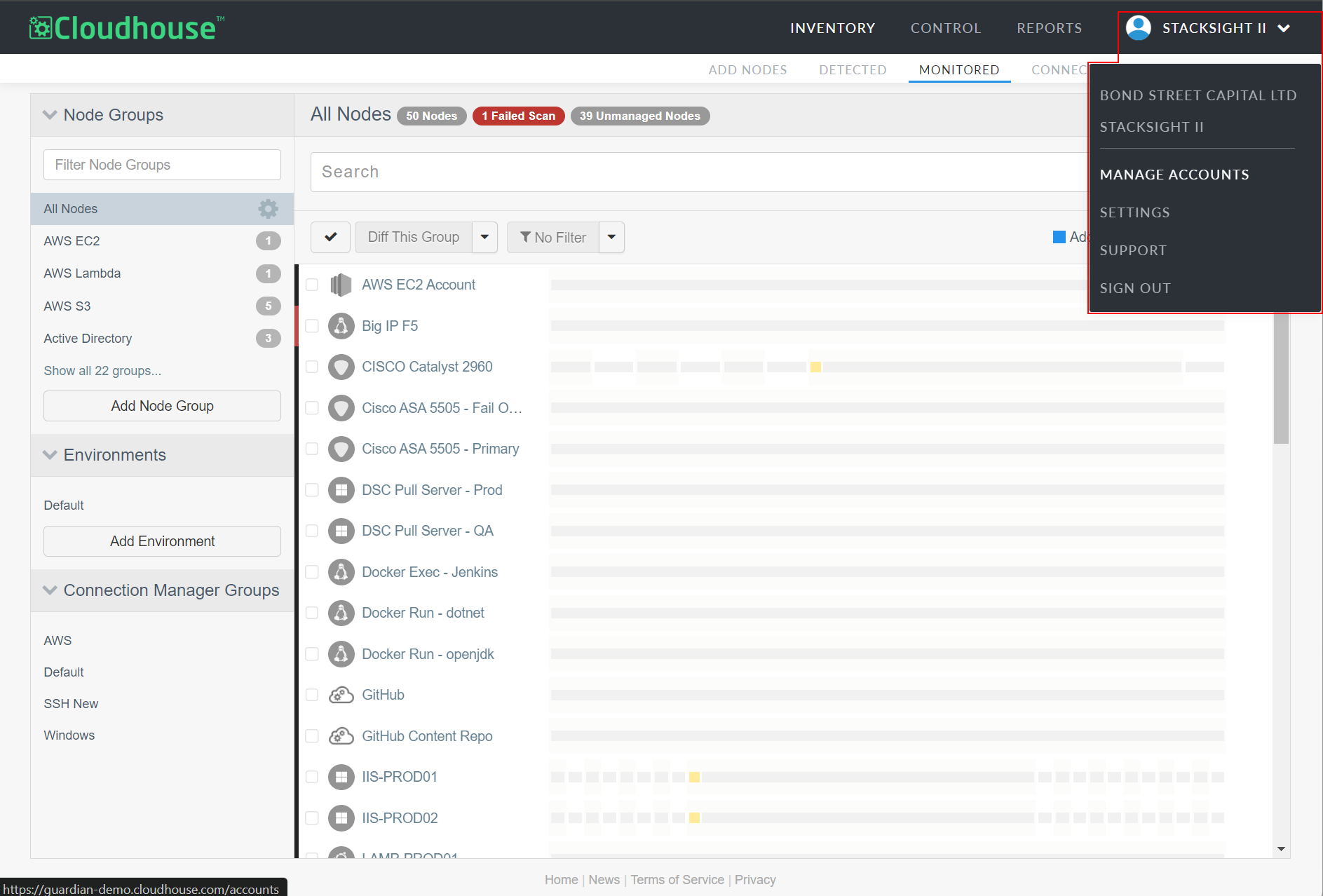
In the top right corner of Guardian, click the name of your organisation to display the Account Menu drop-down.
-
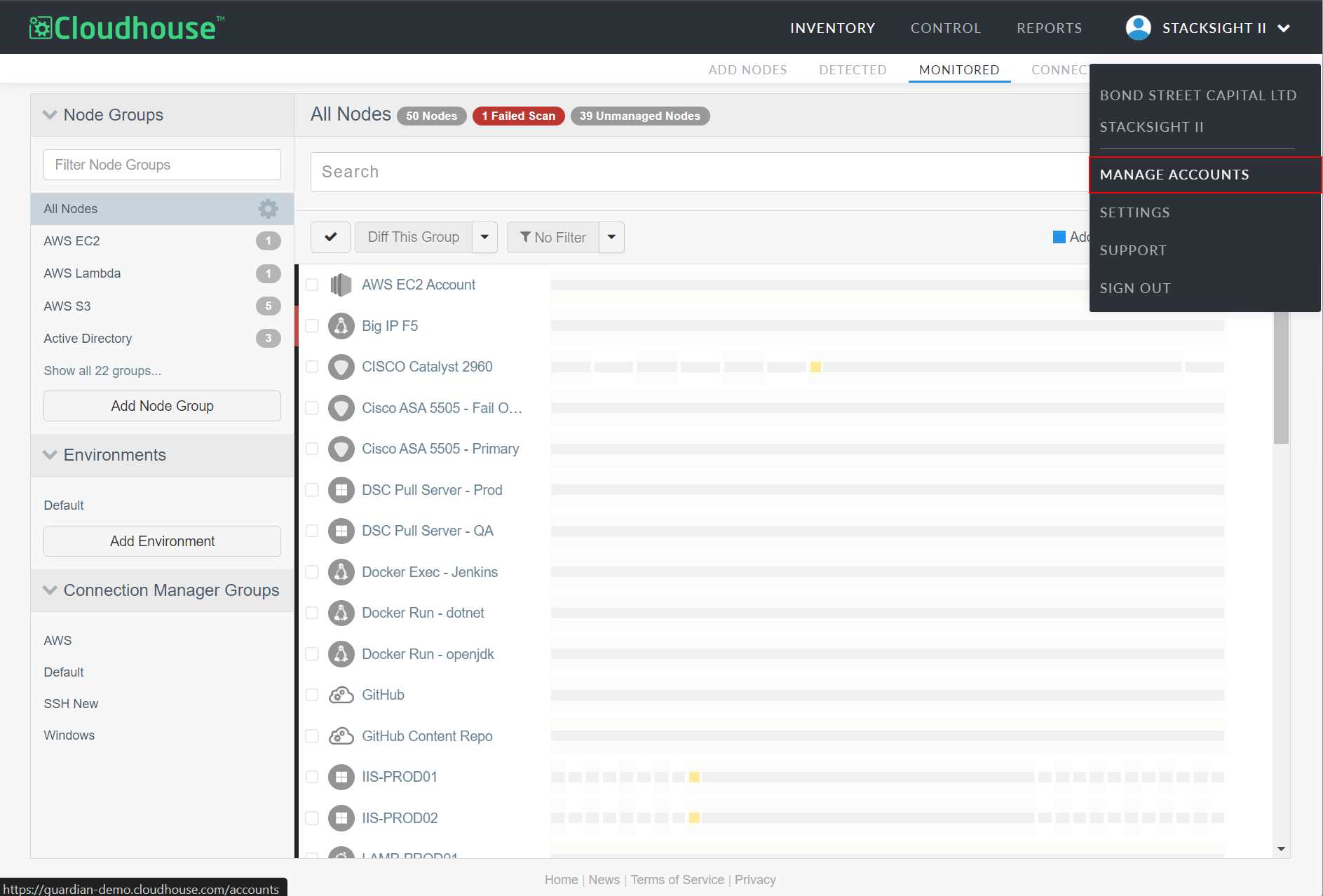
Then, select Manage Accounts to display the Accounts page. Here, a list of organisation accounts are displayed.
-
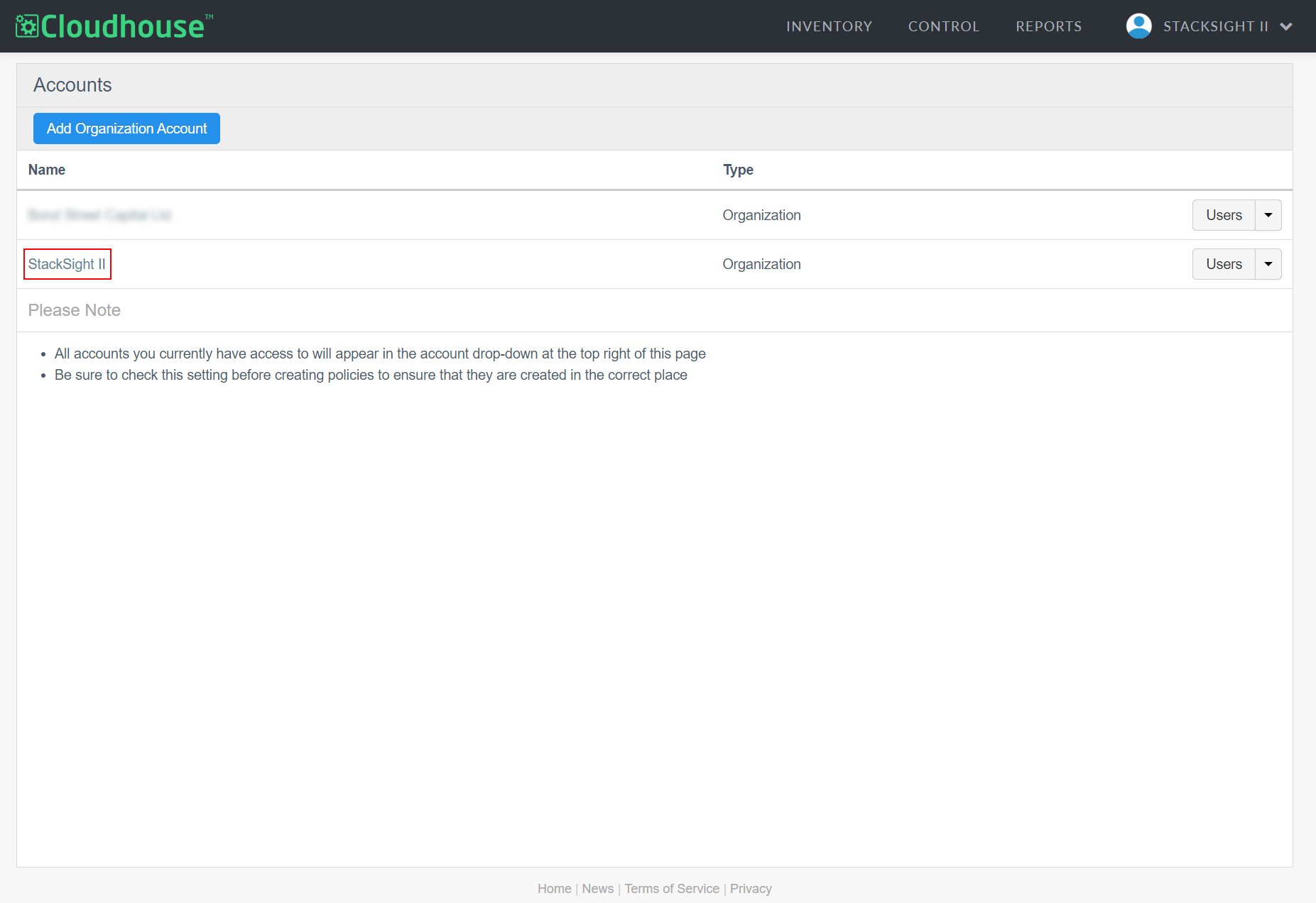
Select the relevant organisation account by clicking the Name. The corresponding account management page is displayed.
-
Select 'Enabled' from the API Access drop-down list. The Secret Key field is then displayed with required value.
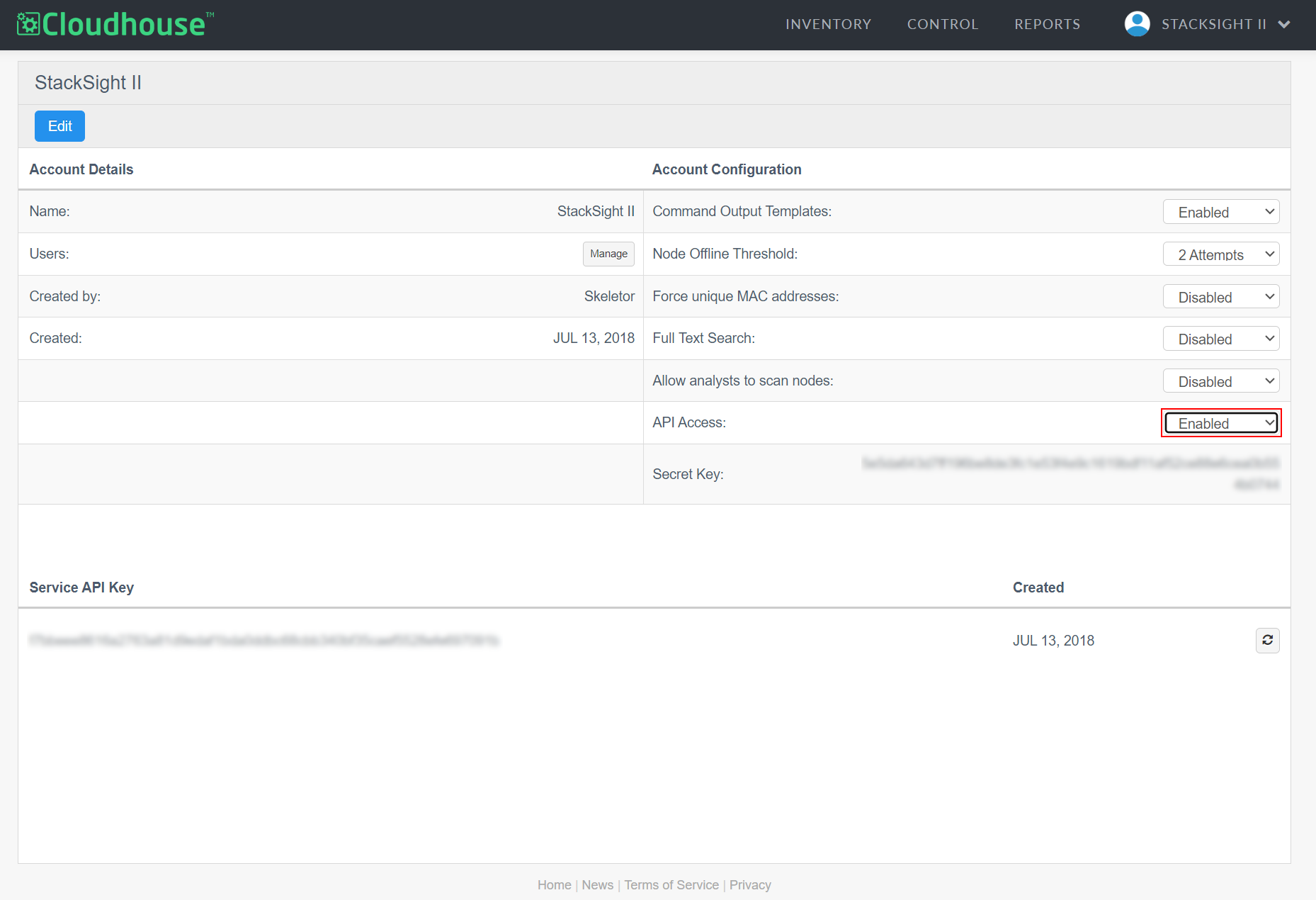
Now, you can copy the Secret Key and Service API Key as needed.
By default, there is one API secret per organisation account. If your Guardian instance has multiple organisation accounts, you will need to keep a service API key and secret pair for each organisation account for scripts that interface with multiple accounts.
Tip
Optionally, you can enable personal API keys, also referred to as user-specific API keys. Instead of one API secret key per organisation, personal API keys can be used to help identify which users performed what actions within Guardian. For more information, see Personal API Keys. To enable this feature, contact your Cloudhouse Representative.
Authentication methods#
There are two methods to form the API request headers for Authentication:
- Token authentication.
- Basic authentication.
For more information and examples of each method, see below.
Token authentication#
For this method, the Authorization request header is formed by concatenating your Service API Key and your Secret Key, where:
Authorization: Token token="[Service API Key][Secret Key]"
cURL example#
curl -H 'Authorization: Token token="[Service API Key][Secret Key]"' https://app.cloudhouse.com/api/v2/nodes.json
Basic authentication#
For the Basic Auth method, the following process is used:
The username is supplied with the Service API Key, and the password will be your Secret Key.
cURL example#
curl --user [Service API Key]:[Secret Key] https://app.cloudhouse.com/api/v2/nodes.json
Warning
PowerShell users are highly recommended to use the HTTPS endpoints instead of HTTP. The Windows .NET Framework does not propagate the original request headers as a security measure. While the HTTP endpoints will redirect (via a 301 status code) to the corresponding HTTPS endpoints, PowerShell will drop the authorisation token headers during the redirect, resulting in a 401 Unauthorised Error as a response.
API example code#
To access API code examples, see our Git repository of API code examples in a variety of scripting languages.
Tip
If your scripting language is not available, or you'd like to request a specific use case, you can submit a pull request within the repository or contact helpdesk@cloudhouse.com to raise a request.