Compare two files on one node#
See exactly what differs between two files on the same node. For more information on the dependencies for this feature, see Dependencies. File differencing is especially usually for tracking changes over time and ensuring data consistency. For more information, see File Differencing.
Applies to: Guardian Classic
This topic describes how you can compare two differently named files that exist on the same node to see what change(s) were detected during a scan. Comparing files allows you to track file data consistency and take action in case of problematic discrepancies or issues.
To compare two differently named files on the same node, complete the following:
-
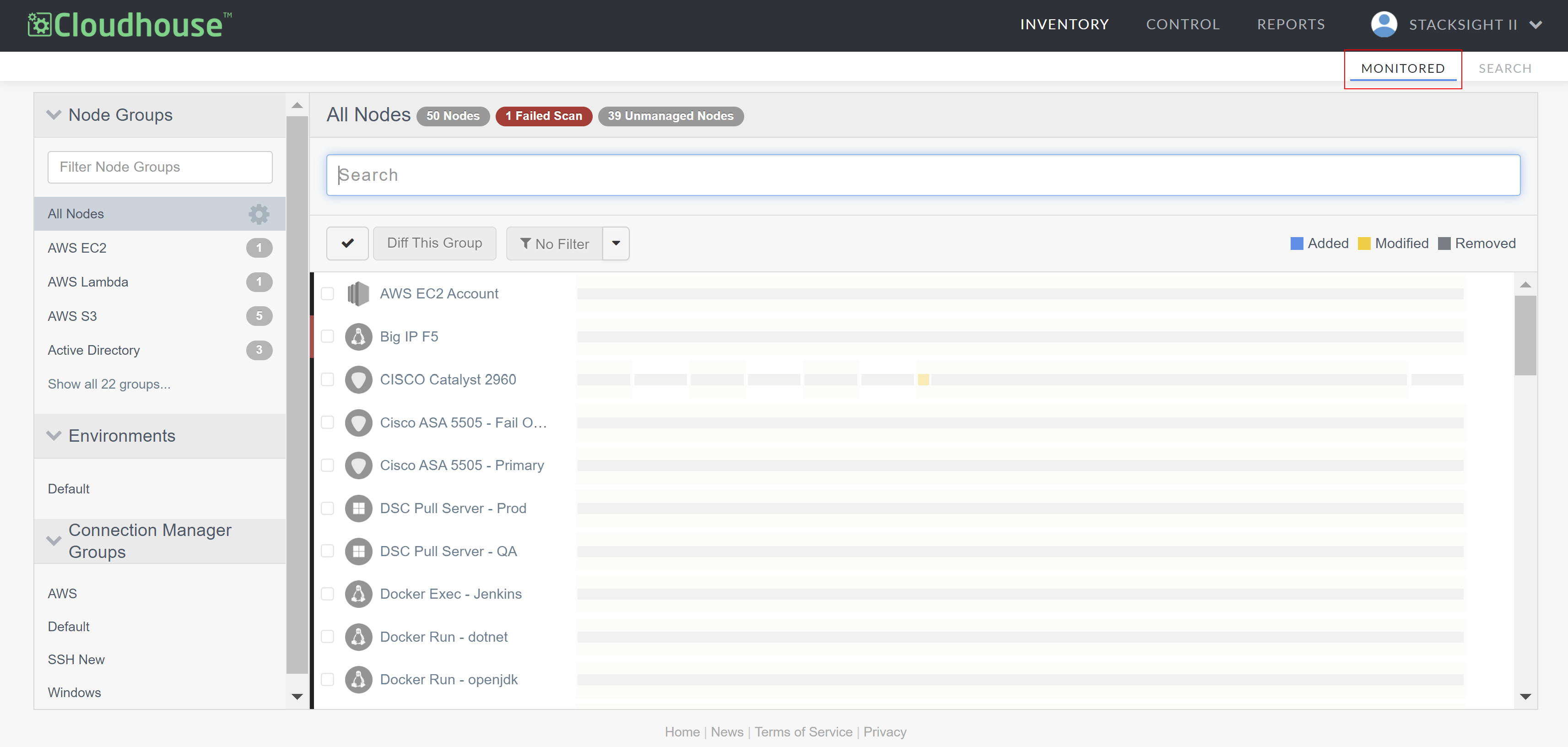
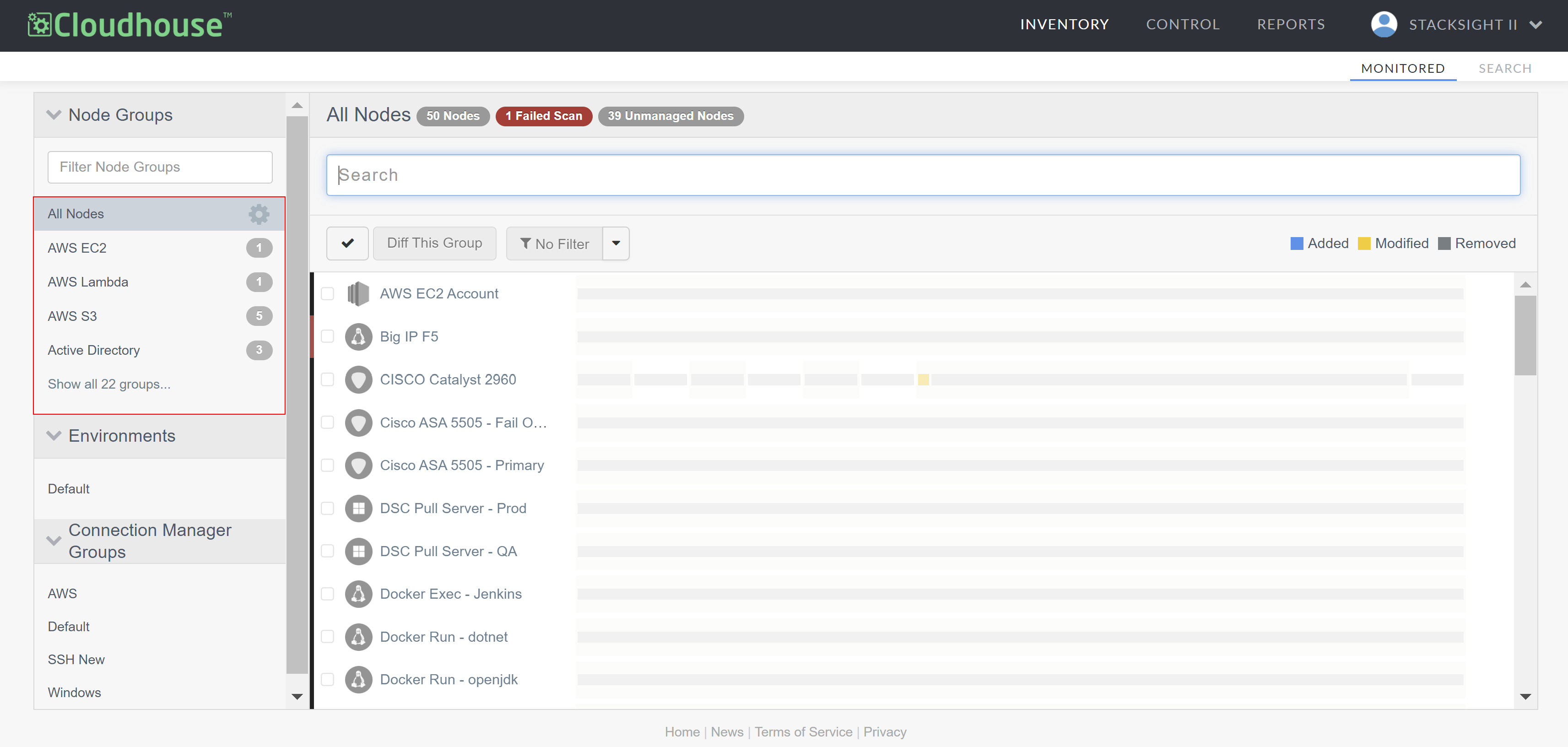
In the Guardian web application, navigate to the Monitored tab. By default, all currently monitored nodes are displayed within the 'All Nodes' node group.
Note
If you want to display the list of monitored nodes contained within a different node group, select a node group from the Node Groups drop-down menu.
-
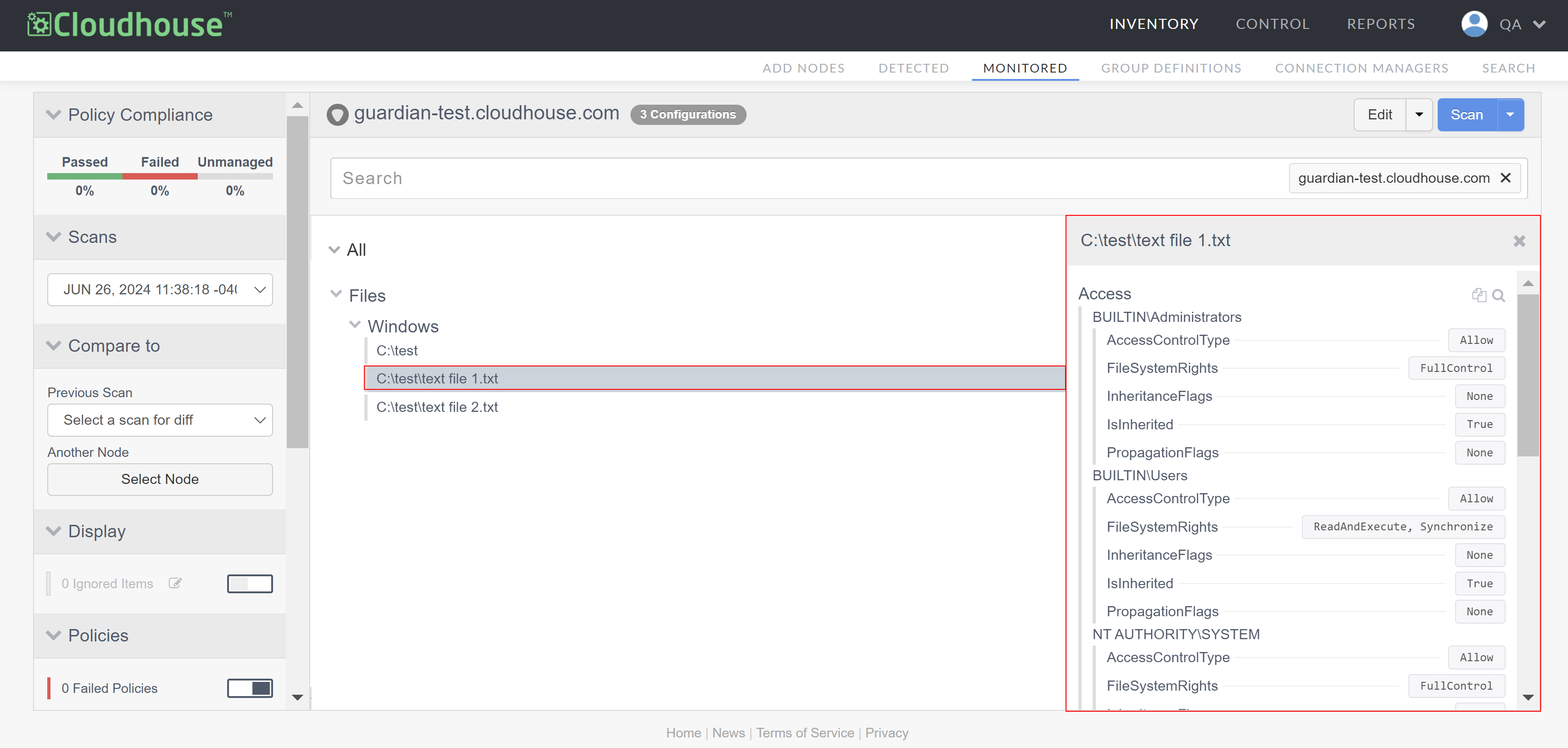
Select the node that contains the two files you want to compare from the list of monitored nodes. The Node Scan Results page is displayed. For more information, see Node Scan Results.
-
Select the first file you want to compare. The file details are displayed in the right panel.
-
Right-click on the second file and select Compare With Selected.
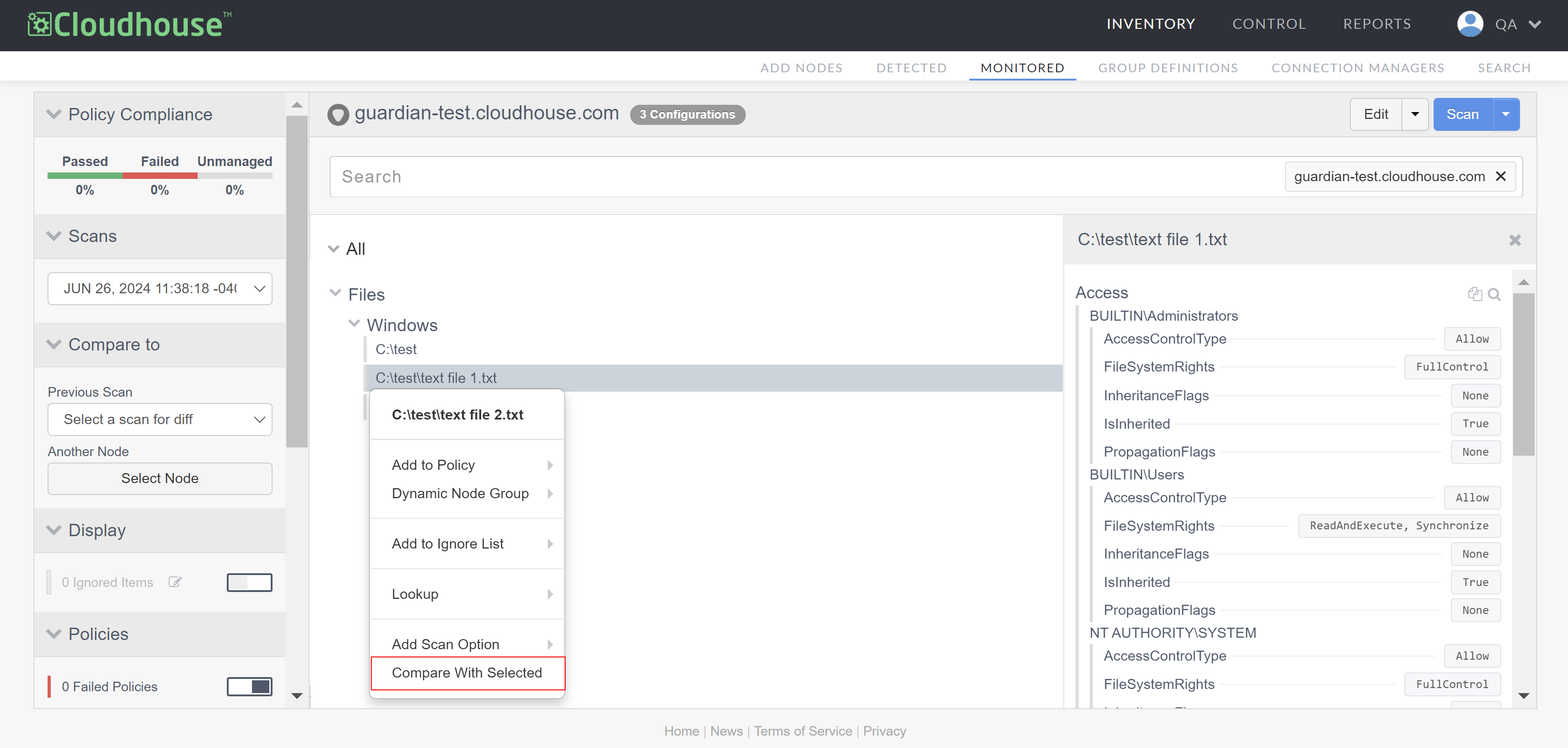
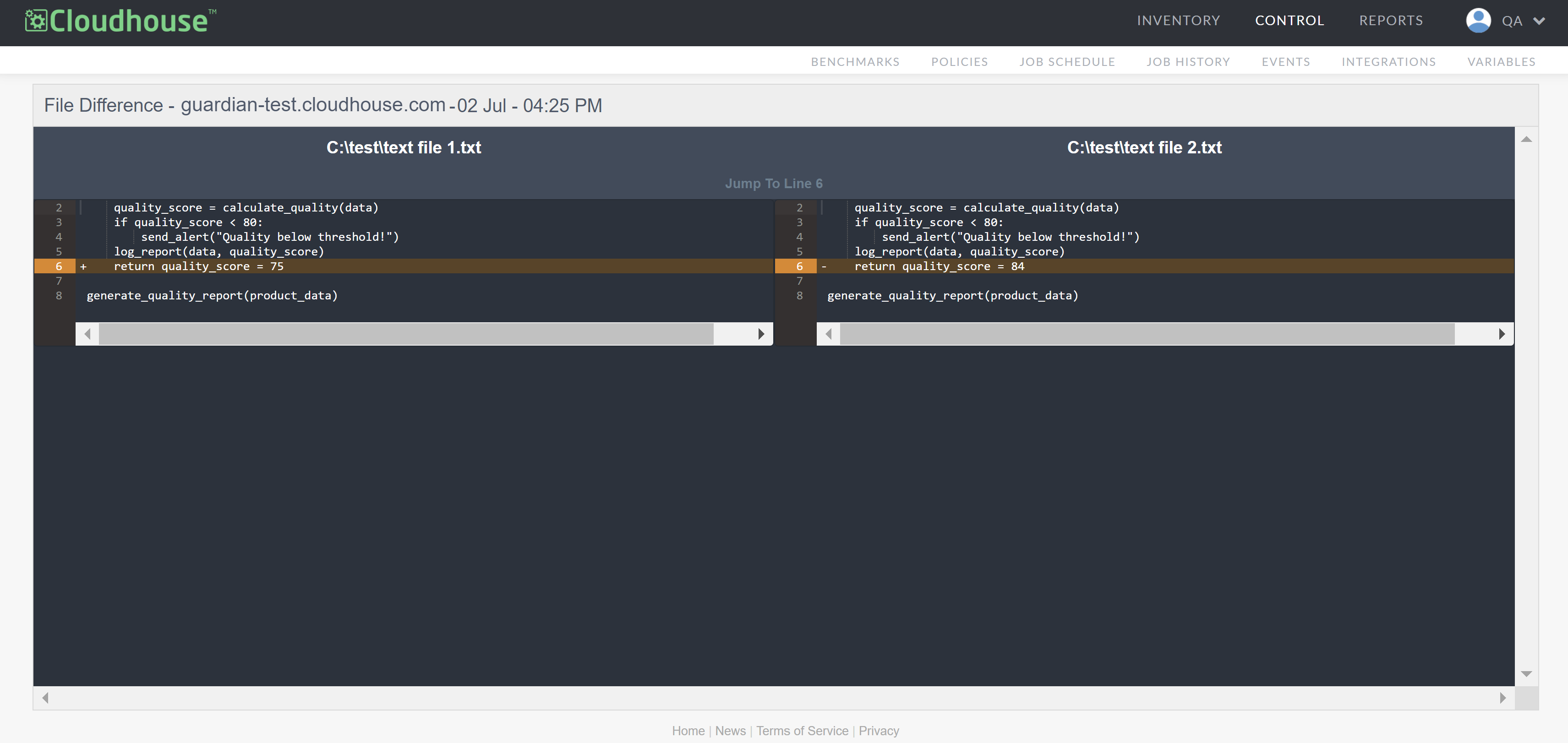
The File Difference page is displayed with a side-by-side comparison of the differences detected during the scan. Here, you can see exactly where the differences are present within the two files. You can then analyse differences and take action, if required.