
Change a user's role#
There are three possible roles a user can have in Guardian: Administrator, Analyst, or Member. Each role has different permissions, which means each role can perform different actions in Guardian. For more information on user roles, including details on the limitations and permissions set for each role, see Users.
Applies to: Guardian Classic
If you need to change a user's role for any reason, you can do so from an organisation's Users page (Account > Manage Accounts > Users).
Note
Each organisation has its own unique list of users, and one user's permissions may vary from one organisation to another. Additionally, changes made to user permissions do not automatically apply to each organisation a user has access to. For more information on organisations, see Organisation Accounts.
To change a user's role, complete the following process:
-
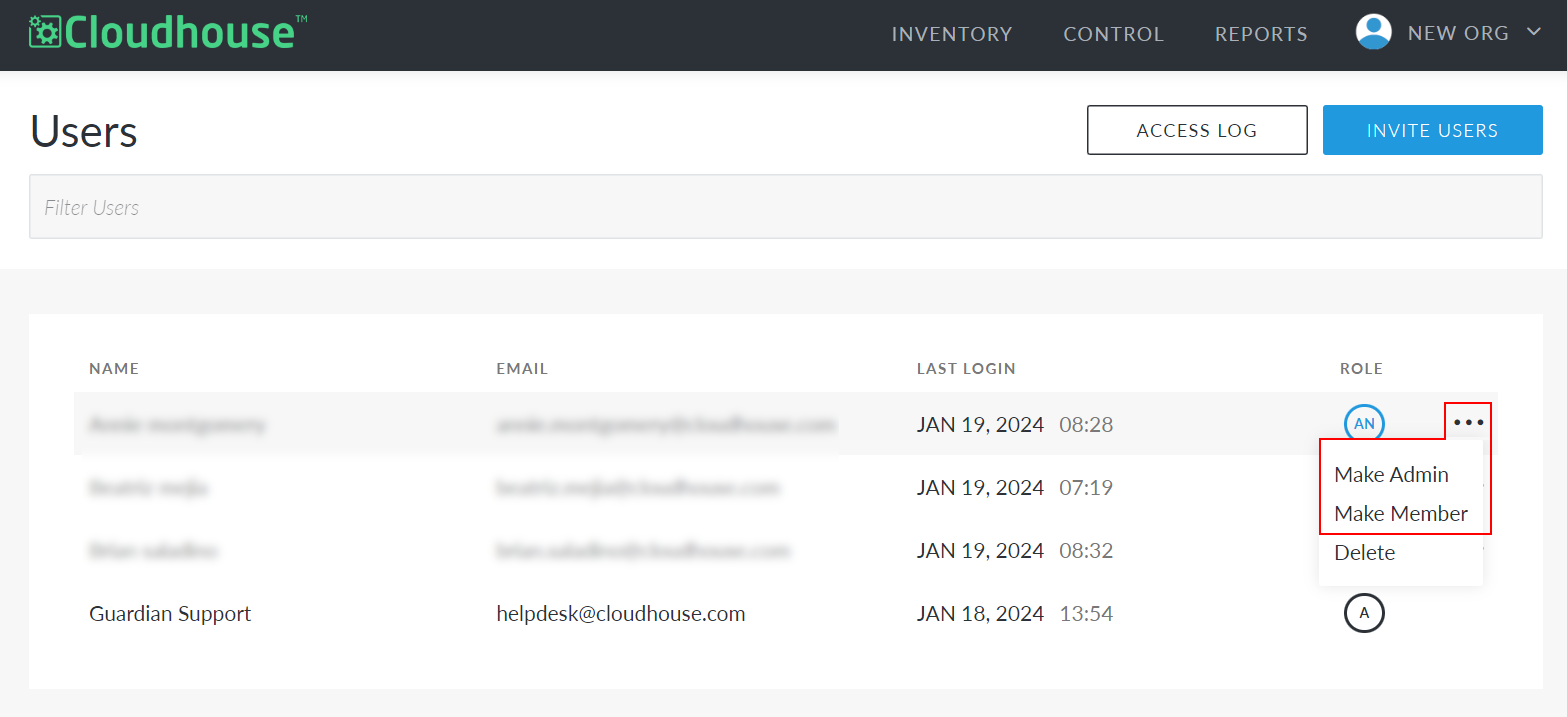
On the Users page, click the ellipsis (
 ) next to the user whose role you want to change. A drop-down list is displayed with the alternative roles available.
Note
The options in this list vary depending on the role that is currently assigned. For example, for a user who is already a Member, the 'Make Member' option is not displayed.
-
Select Make Admin, Make Analyst, or Make Member from the drop-down list.
Note
To view a description of each role, see Users. Depending on your Guardian deployment method, you may be prompted to enter your password when changing a user to an Administrator role.
The Users page automatically refreshes to reflect the user's updated role, which is displayed in the Role column.