
Invite users#
Invite people to an organisation and choose their role. Invites can be sent from the Users page (Account > Manage Accounts > Users). When sending an invitation, you will also assign a role for the new user(s). Possible roles in Guardian include Administrator, Analyst, and Member. For more information on each user role, see Users.
Applies to: Guardian Classic
To invite users to an organisation, complete the following process:
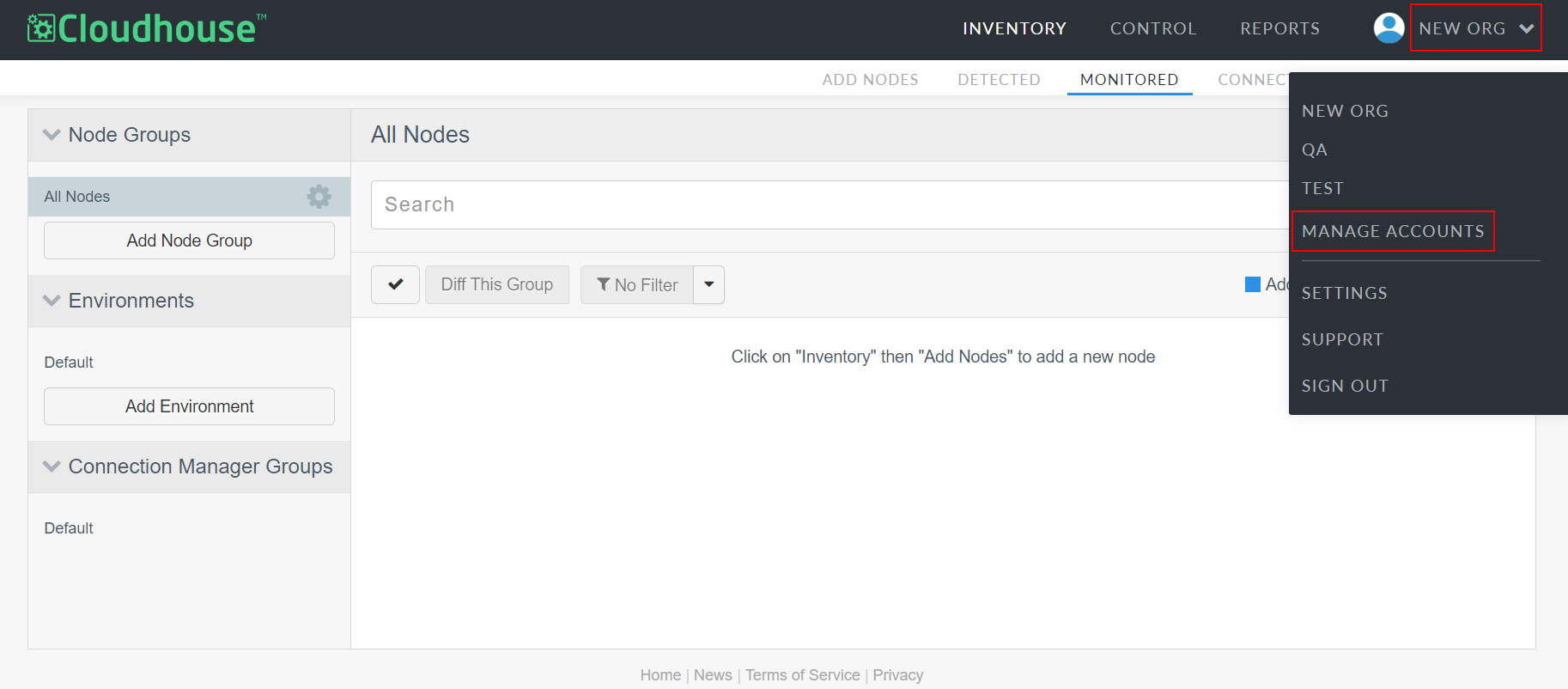
- Click the Account drop-down menu in the top right corner of Guardian.
-
From the drop-down menu, select Manage Accounts. The Accounts page is then displayed.
-
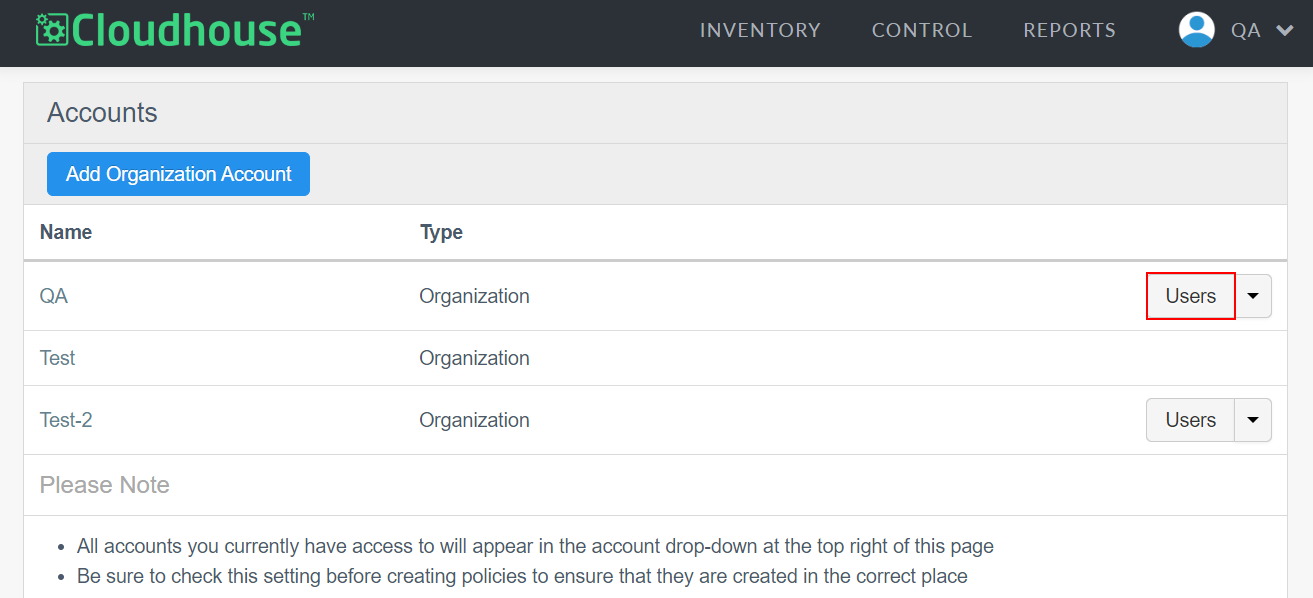
Click the Users button for an organisation. The Users page for the selected organisation is displayed.
-
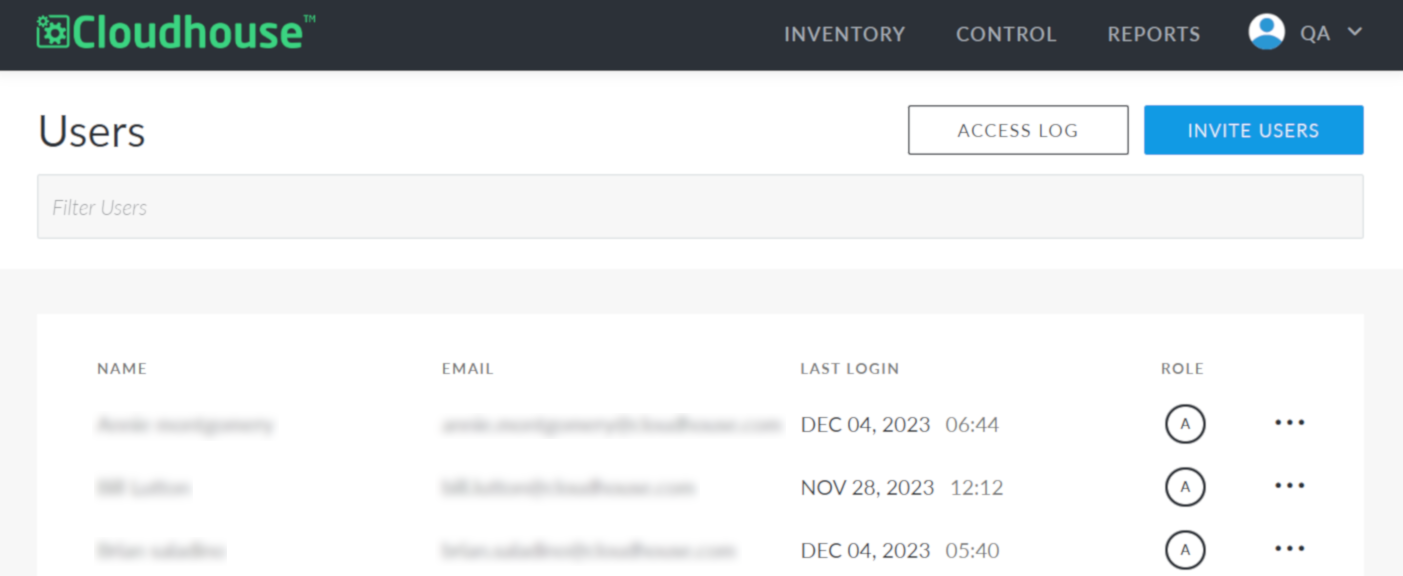
Click the Invite Users button in the top right corner of the page. The Invite Account User page is displayed.
-
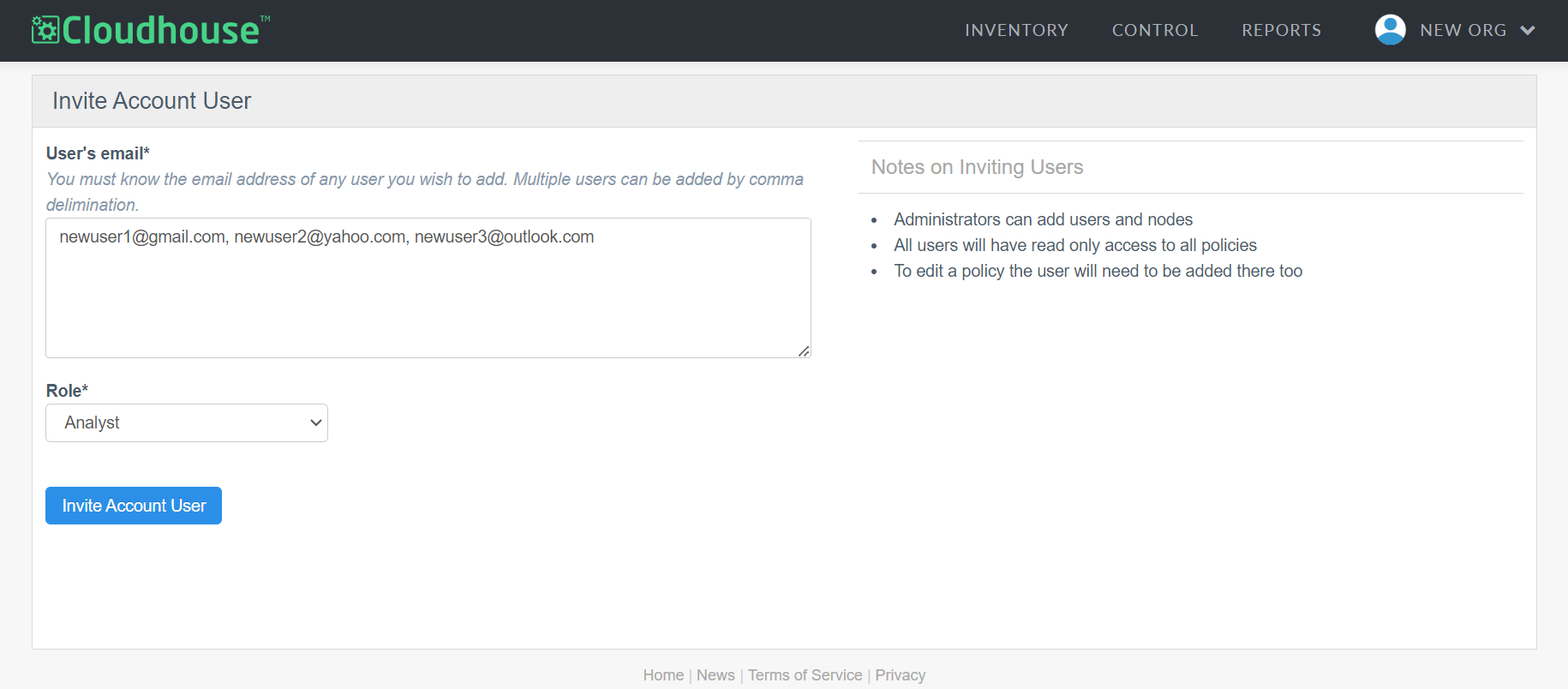
Enter the User's email in the field provided. Here, you can enter multiple email addresses at once, separated by commas.
-
Select a role from the Role drop-down list to stipulate what permissions are set for the user account(s) If no role is selected, the new users are invited as a 'Member'.
Note
Available roles include Administrator, Analyst, and Member. To view a description of each role, see Users. Depending on your Guardian deployment method, you may be prompted to enter your password when inviting users as Administrators.
-
Once complete, click to Invite Account User.
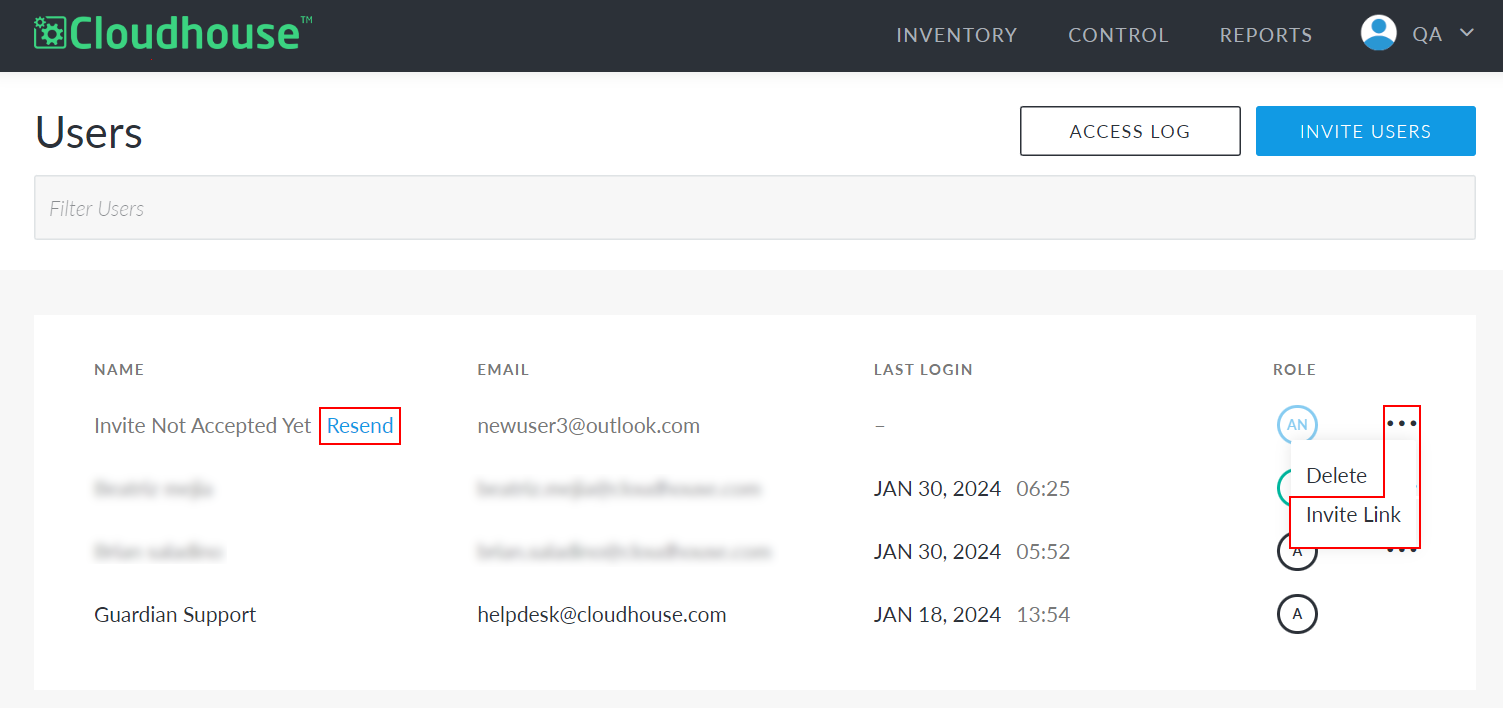
Then, your invites are sent to each recipient via email. Each email includes an invite link to join your Guardian organisation. The invited users are then required to set a password for their new account. Pending invitations are also shown on the Users page. Here, you can delete or resend an invitation if needed. To resend an invitation, click Resend next to the invited user. You can also access the invite link directly by clicking the three-dot icon next to the invited user and selecting Invite Link. Here, you can copy the invite link and share it with the new user directly.
For more information on users and user management, see the following topics: