
Report job#
Email a benchmark, policy or node group report on a schedule. This job type generates a report on the chosen node type and emails it to the list of recipients provided. For this job, there are three types to choose from:
Applies to: Guardian Classic
| Type | Description |
|---|---|
| Report – Benchmark | Generates a benchmark report in PDF or CSV format and emails it to the list of recipients. |
| Report – Policy | Generates a policy report in PDF or CSV format and emails it to the list of recipients. |
| Report – Group Diff | Generates a report on the specified node group in JSON format that compares the stats between each job run. |
For more information on Scheduled Change Reports, see Scheduled Change Report – Job Type.
Add a scheduled job#
To add a scheduled report job, complete the following:
-
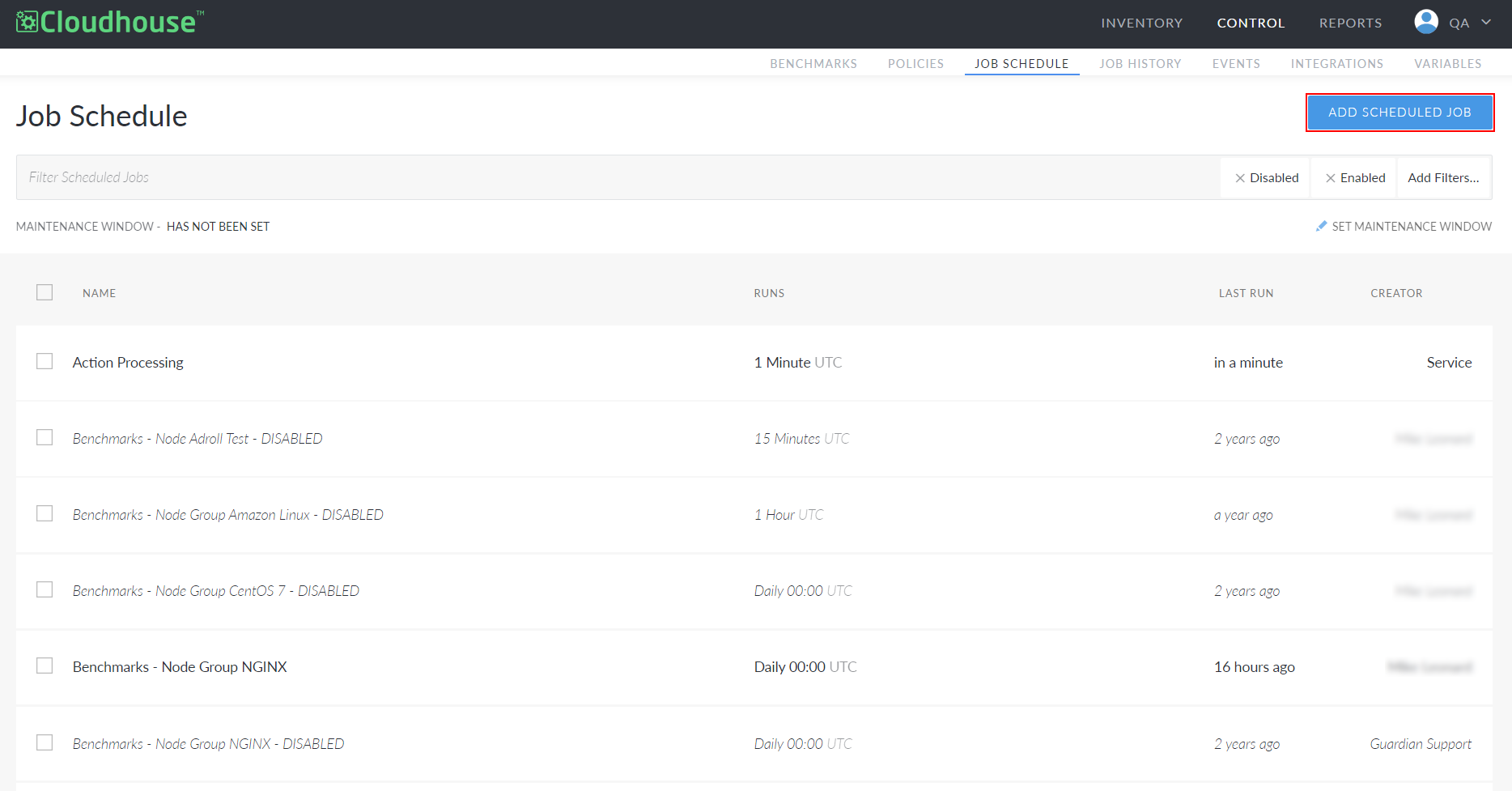
In the Job Schedule tab, click to Add Scheduled Job.
-
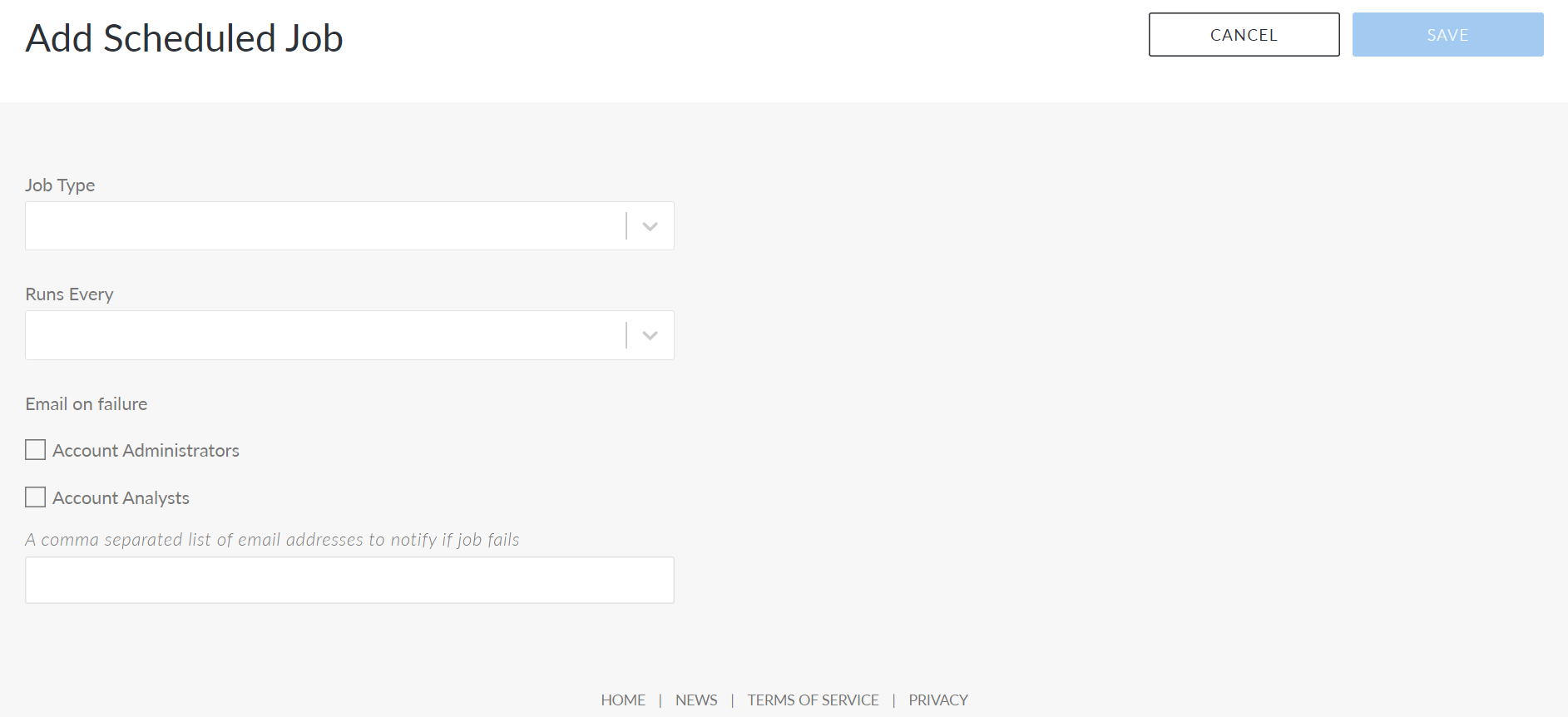
The Add Scheduled Job page is displayed. In the Job Type drop-down list, select a 'Report' option.
-
Once selected, the Add Scheduled Job page is displayed with the fields required to add a scheduled report job.
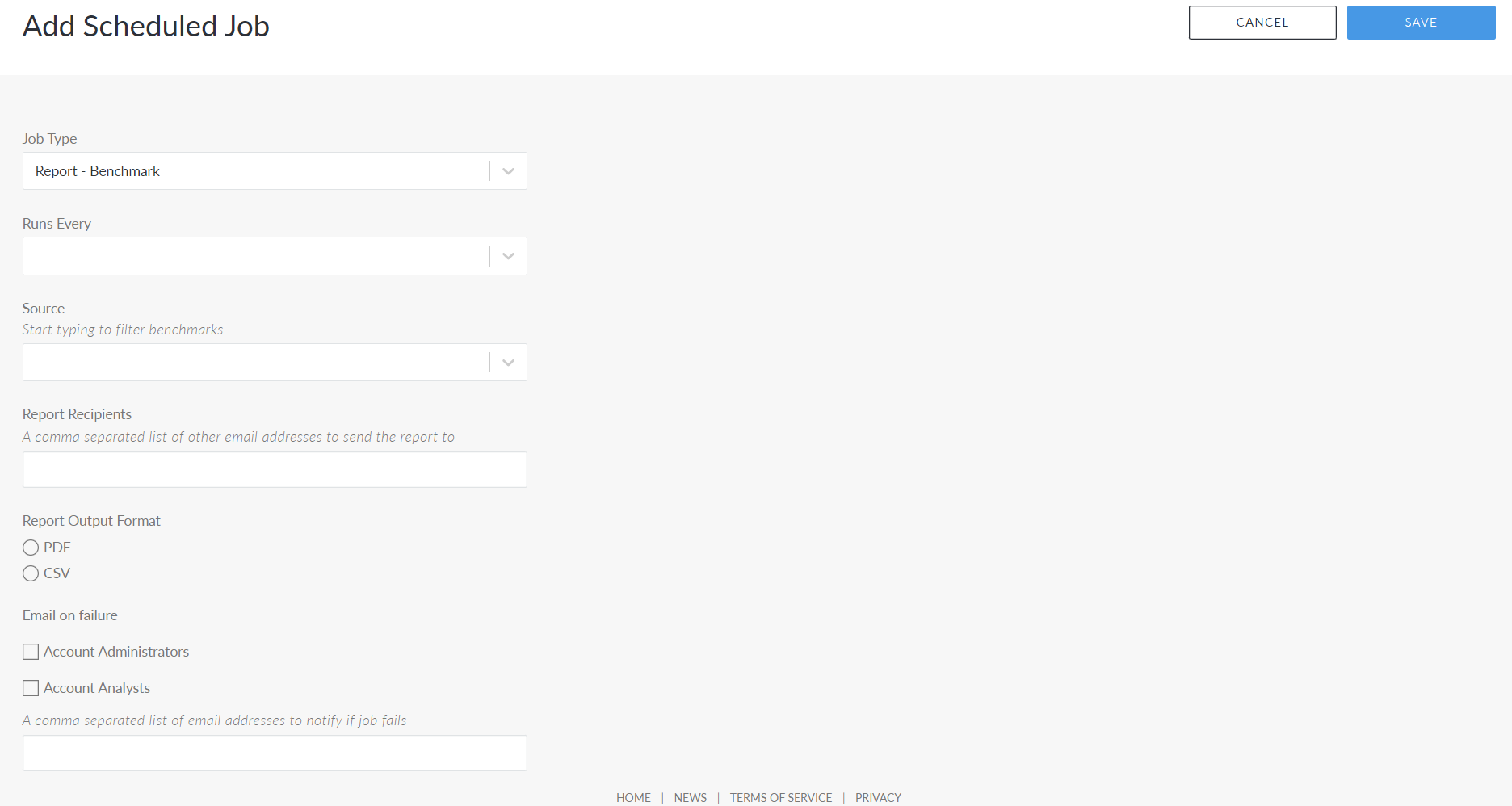
Here, the following options are displayed.
- Job Type drop-down list
- The job type configured to run on a schedule.
- Runs Every drop-down list
- How often the job will be scheduled to run. Select a value from the drop-down list. If you select a schedule to run every 12 hours, additional fields are displayed for you to configure the exact day and time.
- Source drop-down list
- The benchmark/policy/node group that you want the job to be performed on.
- Failing radio button
- Select this option to report on policies that are 'Failing' within your target Source. This option is only displayed for the 'Report – Policy' job type.
- All radio button
- Select this option to report on 'All' policies within your target Source. This option is only displayed for the 'Report – Policy' job type.
- Latest Results Only checkbox
- Select this option to report only on the latest results within your target Source. This option is only displayed for the 'Report – Policy' job type.
- Report Recipients
- Enter a list of email addresses to send the report to, each separated by a comma.
- PDF radio button
- Select this option to generate the report in PDF format. This option is only displayed for the 'Report – Benchmark' and 'Report – Policy' job types.
- CSV radio button
- Select this option to generate the report in CSV format. This option is only displayed for the 'Report – Benchmark' and 'Report – Policy' job types.
- Account Administrators checkbox
- Select this option to notify account administrators via email if the job schedule fails.
- Account Analysts checkbox
- Select this option to notify account analysts via email if the job schedule fails.
- Node Group Members checkbox
- Select this option to notify account analysts via email if the job schedule fails. This option is only displayed for the 'Report – Group Diff' job type.
- A comma separated list of email addresses to notify if job fails field
- Enter a list of email addresses to notify if the job schedule fails, each separated by a comma.
- Once you have entered the correct value in each field, click to Save the job schedule.
If each value was set correctly, a confirmation message is displayed and the job is added to the Job Schedule tab. The job will automatically run according to the schedule you set.
Note
Once the job is run, the results are displayed as a 'Report Job' event in the Events tab. For more information, see Events.