
Customise a benchmark#
Exclude checks or change parameters of a benchmark for one node group. However, the checks stipulated by the CIS may not be compliant with your individual requirements. As such, Guardian provides the option to customise your benchmarks by excluding certain checks within a benchmark and modifying the values for parameter-based checks on a per node group basis.
Applies to: Guardian Classic
Exclude a benchmark check from a node group#
Once a benchmark has been assigned to a node group, you can begin to ascertain what checks may or may not be required and customise the CIS benchmark by excluding individual checks for certain node groups. The following process assumes that the benchmark in question has already been assigned to a node group.
Note
For more information on how to add a benchmark to a node group, see Add Benchmark / Policy to Node Group.
To exclude a benchmark check from a node group, complete the following steps:
-
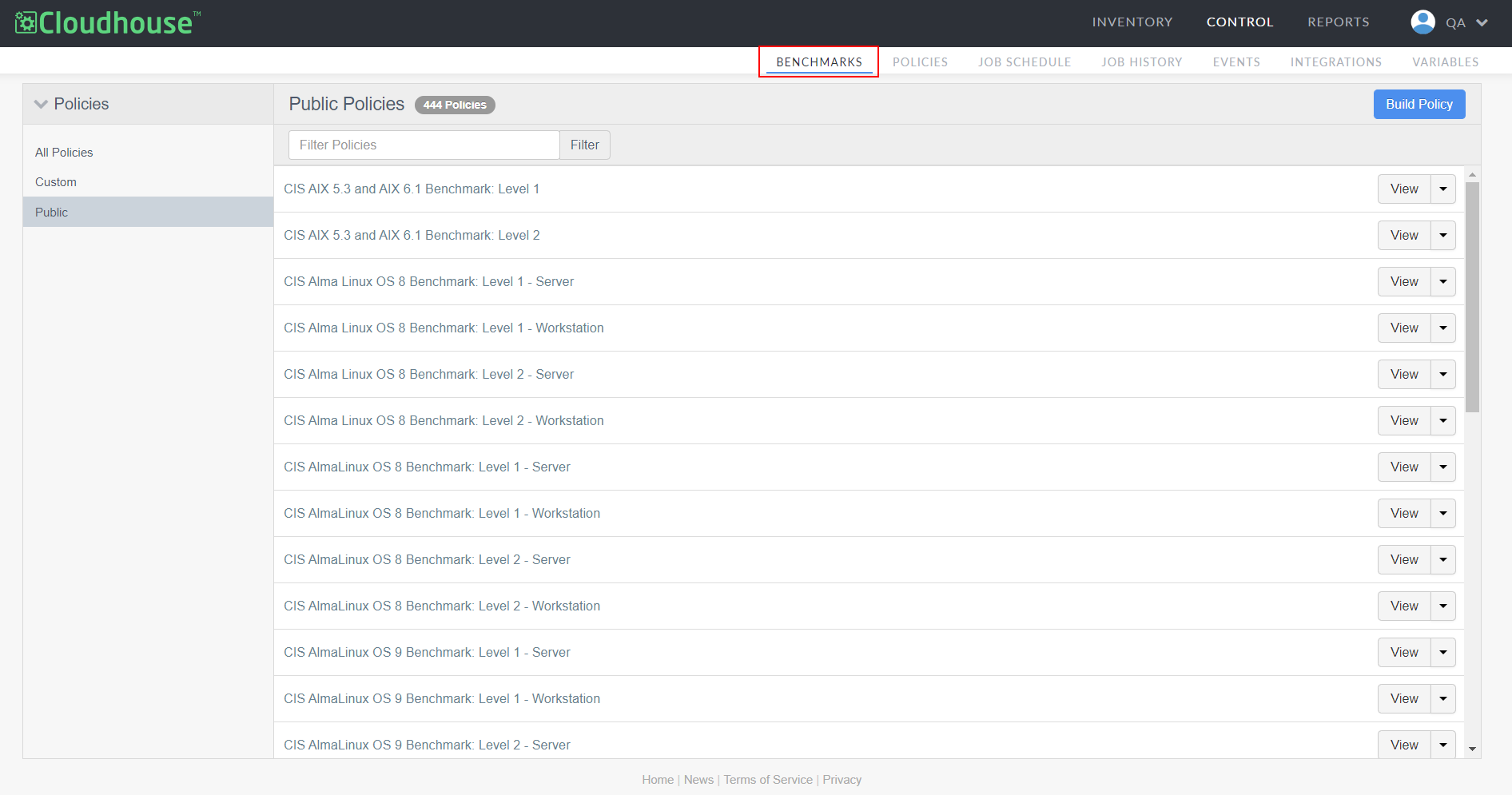
Navigate to the Benchmarks tab (Control > Benchmarks). The list of public CIS benchmarks are displayed.
-
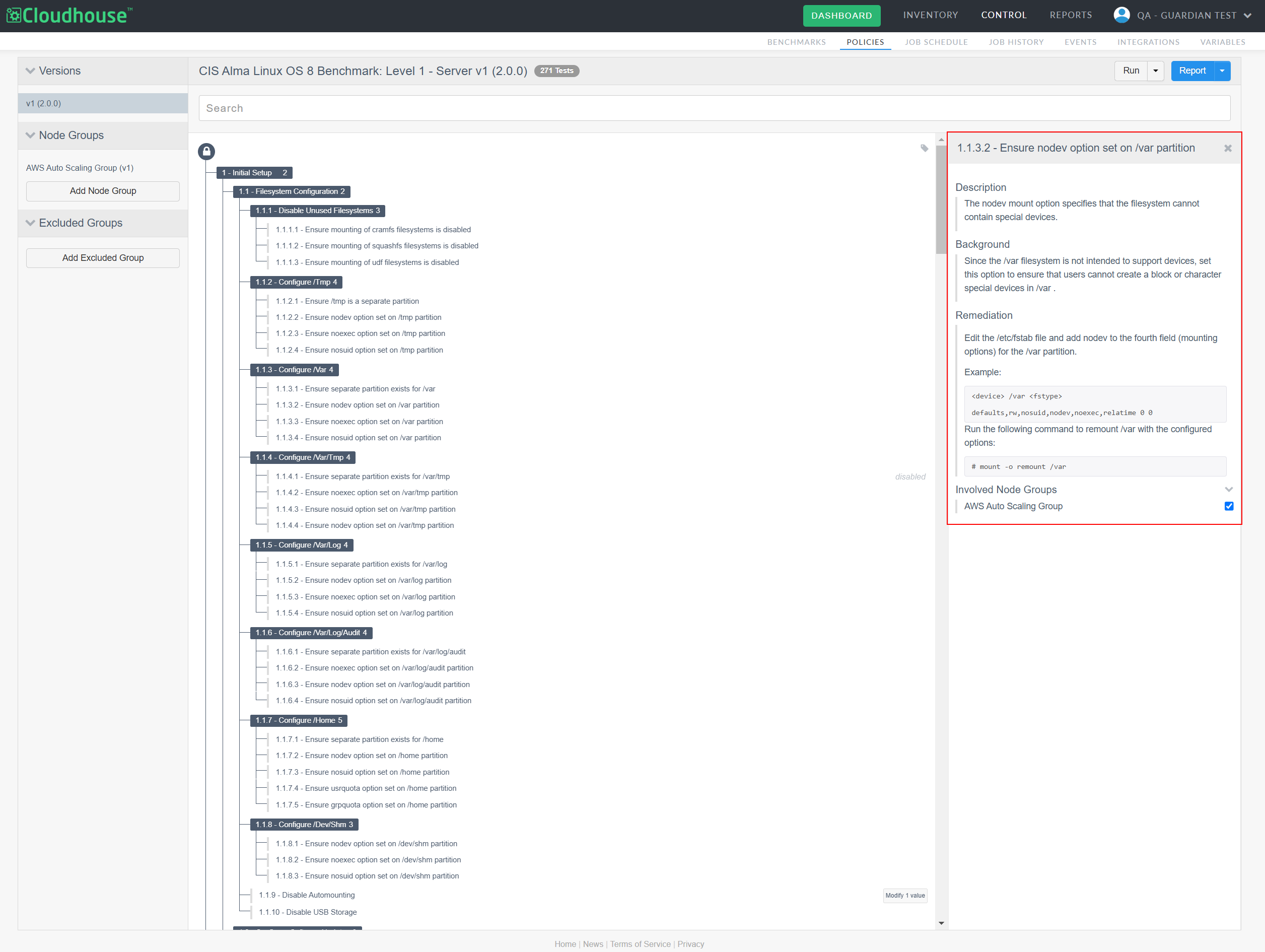
Select the benchmark you want to customise. The benchmark is then displayed with the complete list of checks included.
Tip
Click on the description of a check to display more details in a side panel. Here, a list of Involved Node Groups are displayed, listing each of the groups that are assigned to the benchmark. Exclude any of the node groups from the individual check by deselecting the corresponding check box.
-
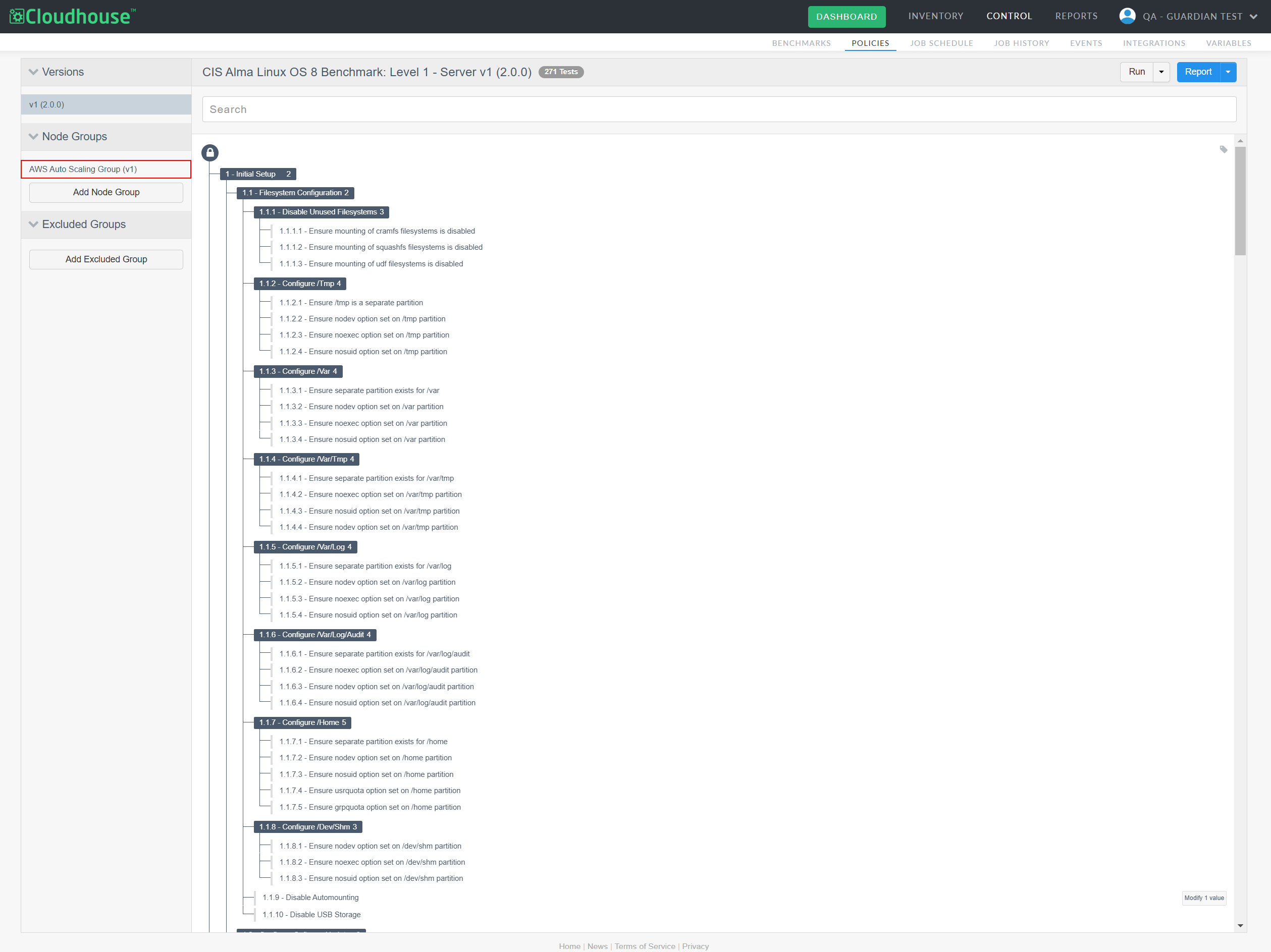
In the Node Groups drop-down menu, locate the node group that you want to exclude the checks from.
-
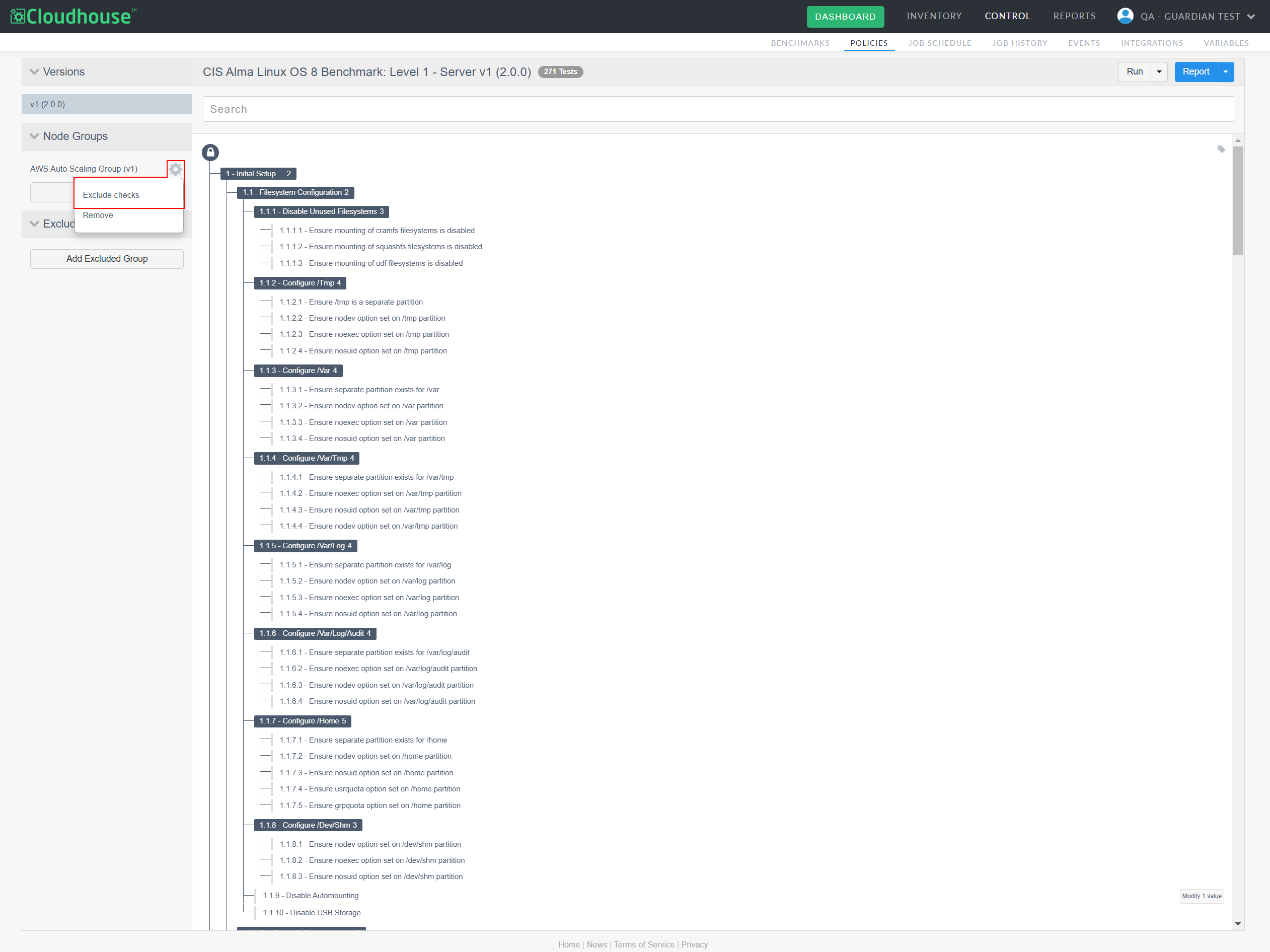
Then, click the Settings button (
 ) and select Exclude checks.
-
Click the Enabled button (
 ) to exclude a check from the selected node group. The button will then display the Excluded button (
 ) once the change has registered.
-
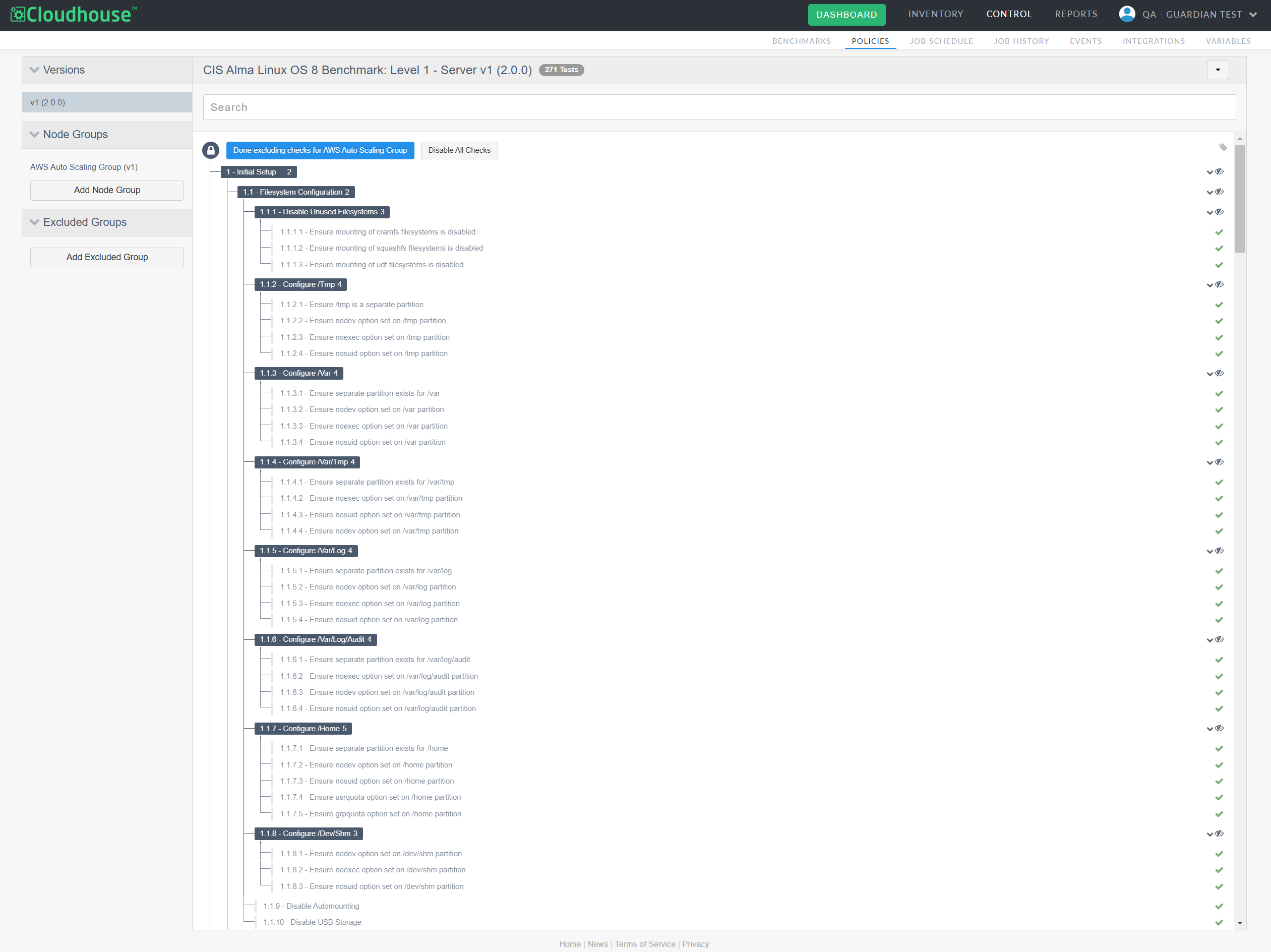
Additionally, you can click to Disable All Checks and then work backwards by enabling individual checks, or sections of checks, one at a time.
Tip
When getting started with a new benchmark, it can be beneficial to disable most checks to start with and then incrementally enable individual checks to confirm that they pass, instead of enabling them all by default. This method can prevent unnecessary data being returned each time the benchmark is run.
-
-
Once you've excluded (or enabled) the required checks, click Done excluding checks for [node group] to save your changes.
Next, you can run the benchmark against the node group to see what checks are passing and failing. For more information, see Run Benchmark.
Modify a benchmark parameter for a node group#
In addition to excluding benchmark checks, you can also modify a parameter within a benchmark check to further customise your benchmarks according to your individual node group's needs.
Note
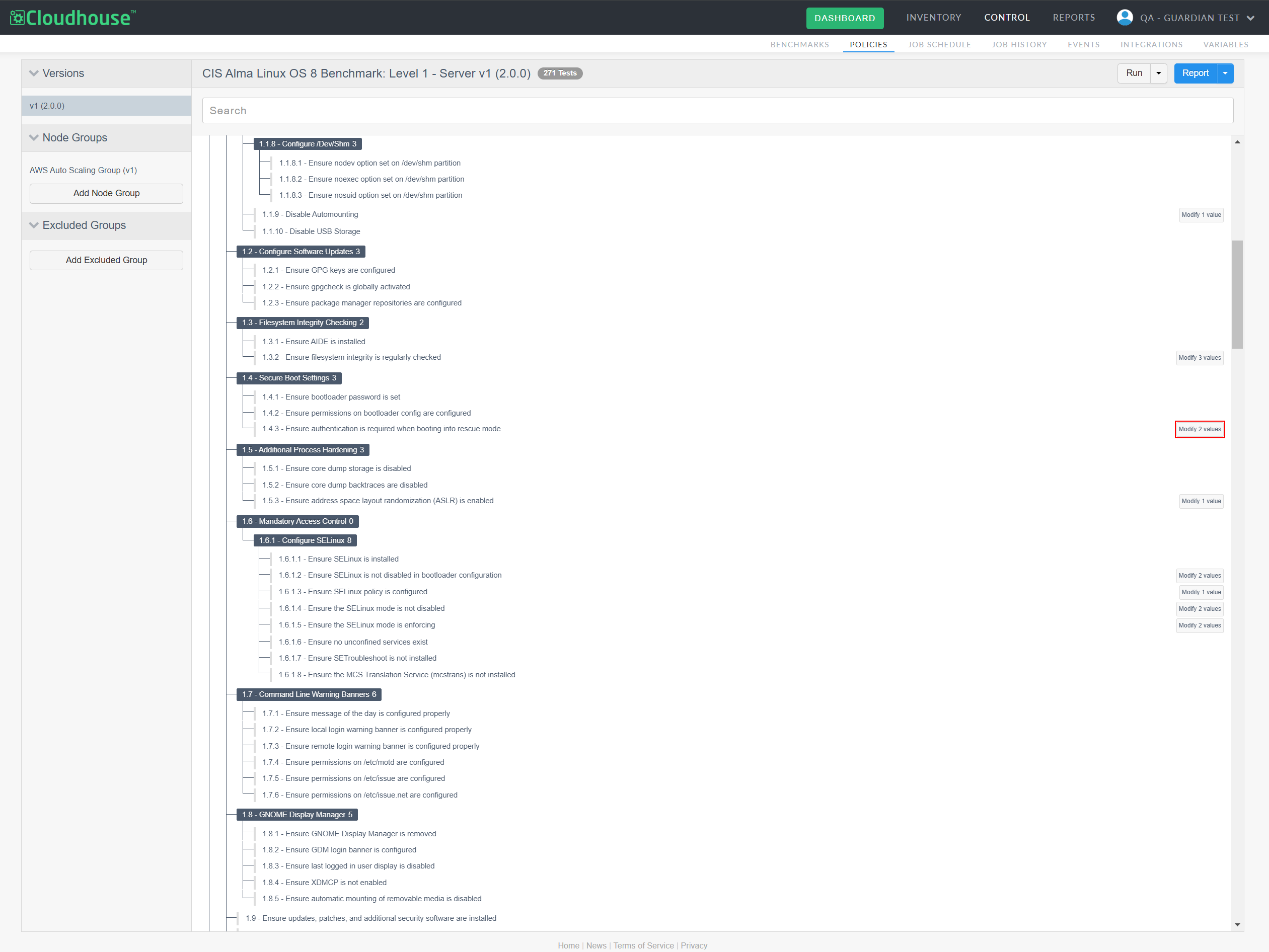
Checks that have a modifiable parameter will be listed with a button labeled Modify X value(s).
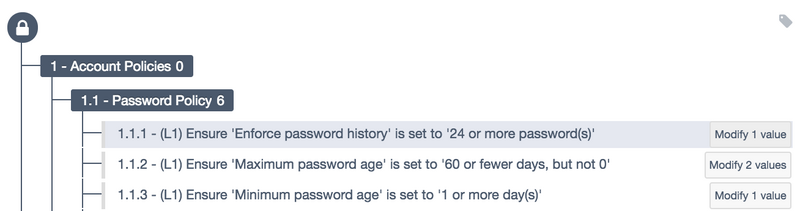
To modify a benchmark parameter for a node group, complete the following steps:
- In the Benchmarks tab, select the benchmark you want to modify. The benchmark is then displayed with the complete list of checks included.
-
Click the Modify X value(s) button to display the value (or values) eligible for modification.
-
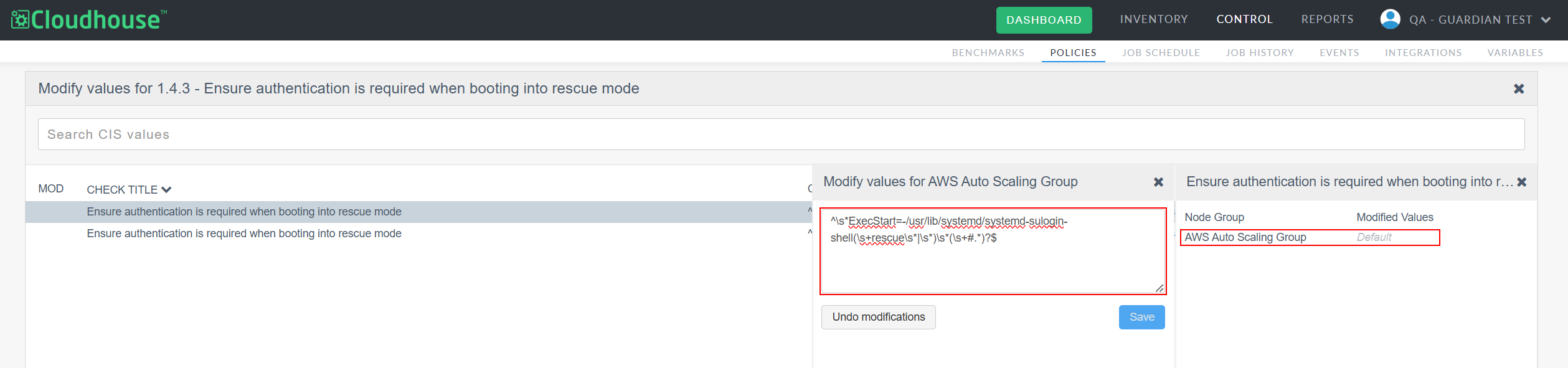
Click on the Check Title for the relevant parameter to display the parameter settings in a side panel. Here, the list of node groups currently assigned to each check is displayed.

-
Click the Modified Values field next to the required node group to display the Modify values for [parameter] side panel. Here, you can modify the value in the field according to your needs.
Tip
If a value has not been modified, the Modified Values field is displayed as 'Default'. If a check has an existing modification you can click to Undo Modification or enter a new value.
-
Once complete, click to Save your changes.
Once you have customised benchmarks to meet your needs, you can schedule benchmarks to be executed against a set of nodes in your environment. For more information, see Schedule Benchmark Reports.