
CIs#
All CIs lists every CI Guardian monitors. Open one to see its latest scan, its history, its compliance and its drift.
Find a CI#
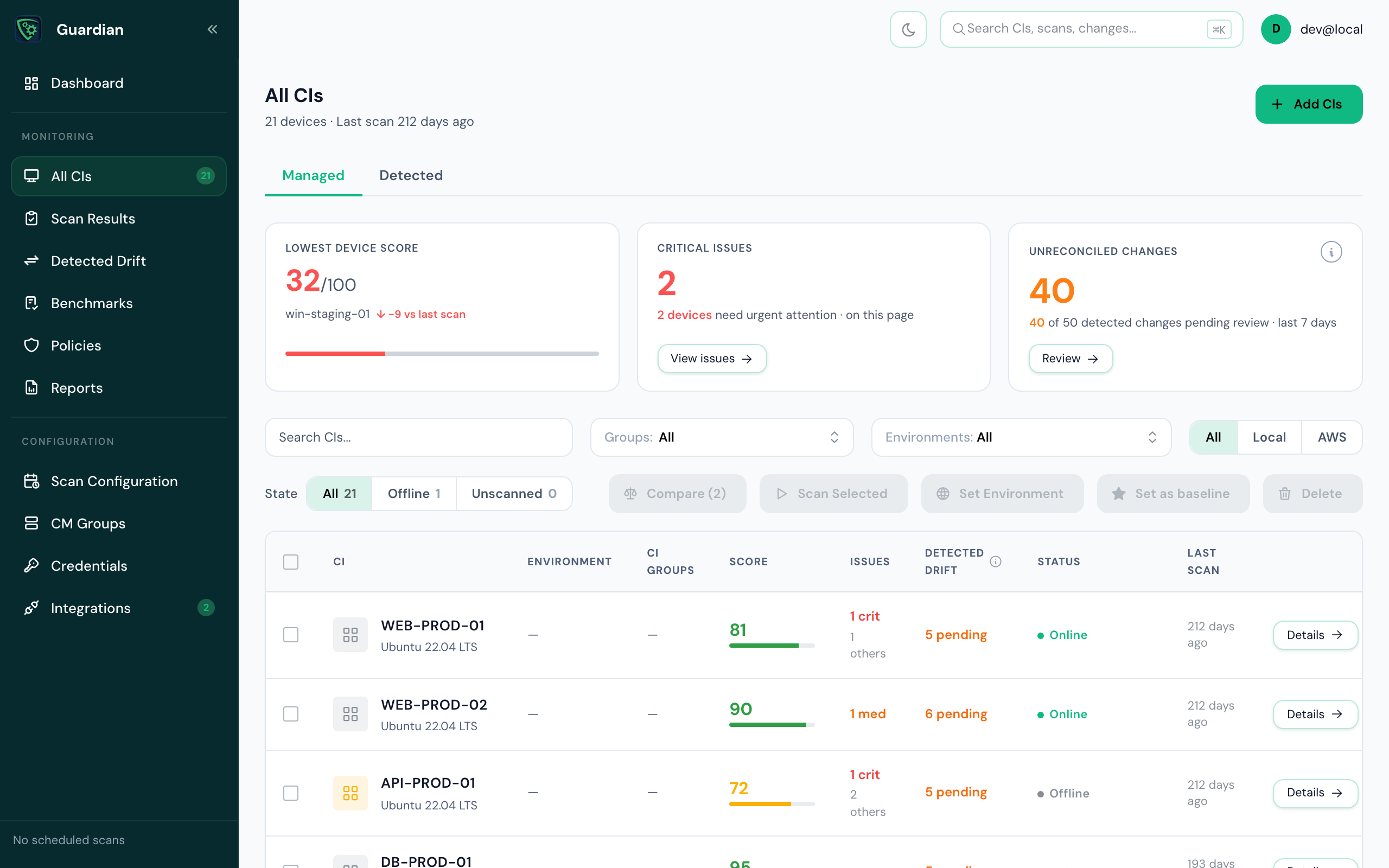
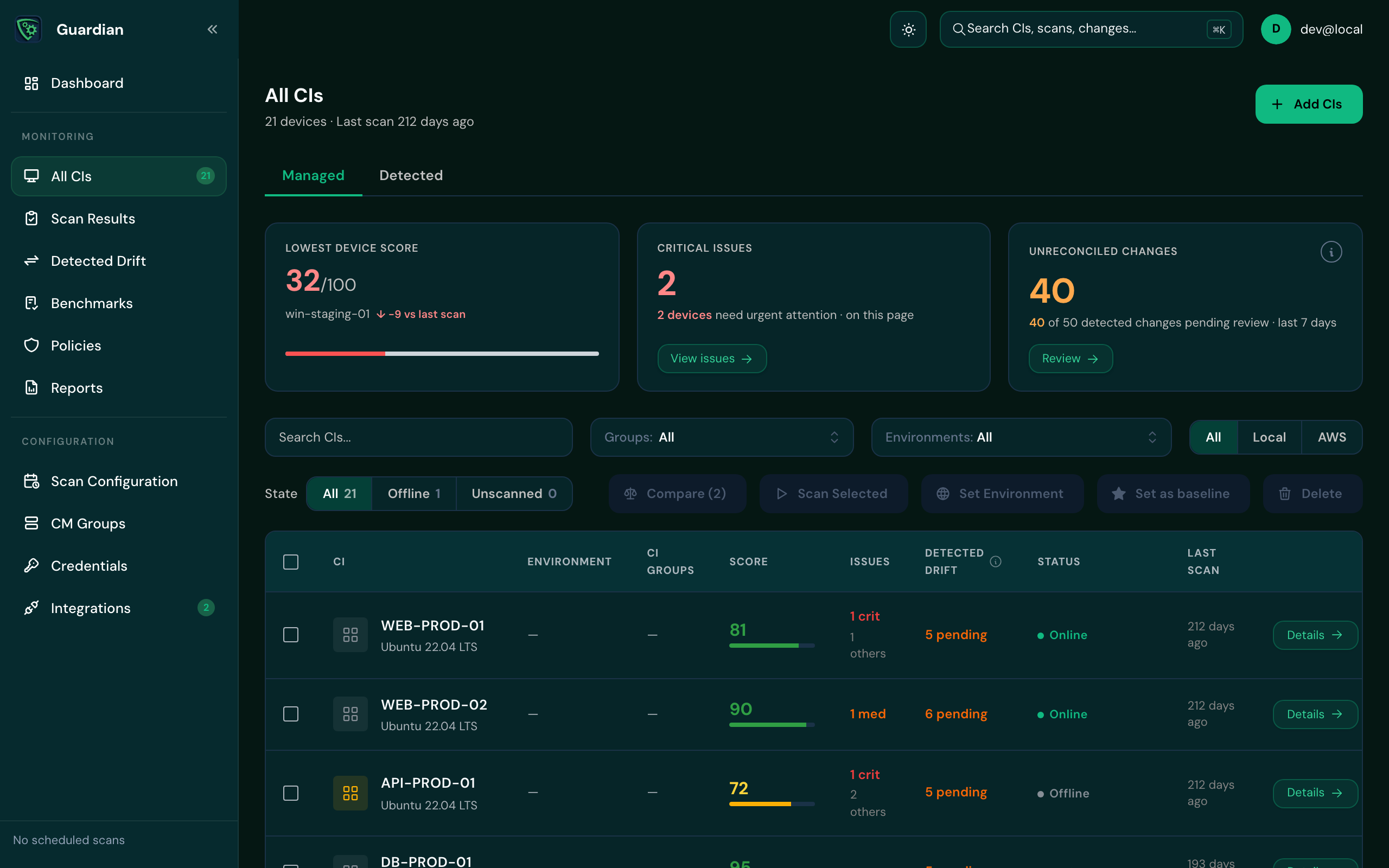
All CIs has two tabs: Managed, the CIs Guardian scans, and Detected, CIs discovered or imported but not yet managed. Search by name, filter by group, environment or source (All, Local, AWS), and filter by state. Select Details on a row to open the CI.
Select CIs with the checkboxes to act on several at once: Compare, Scan Selected, Set Environment, Set as baseline or Delete.
What a CI shows#
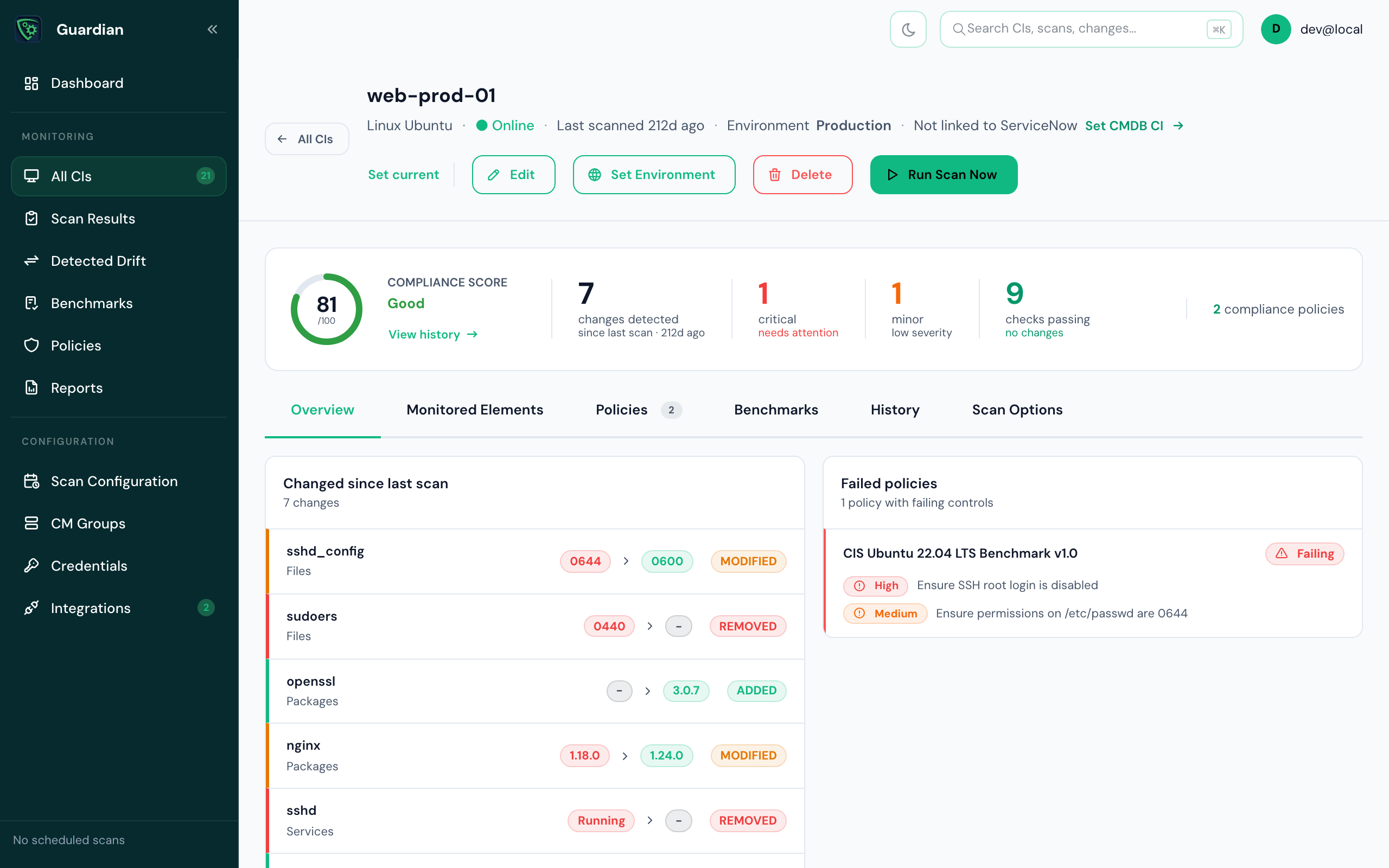
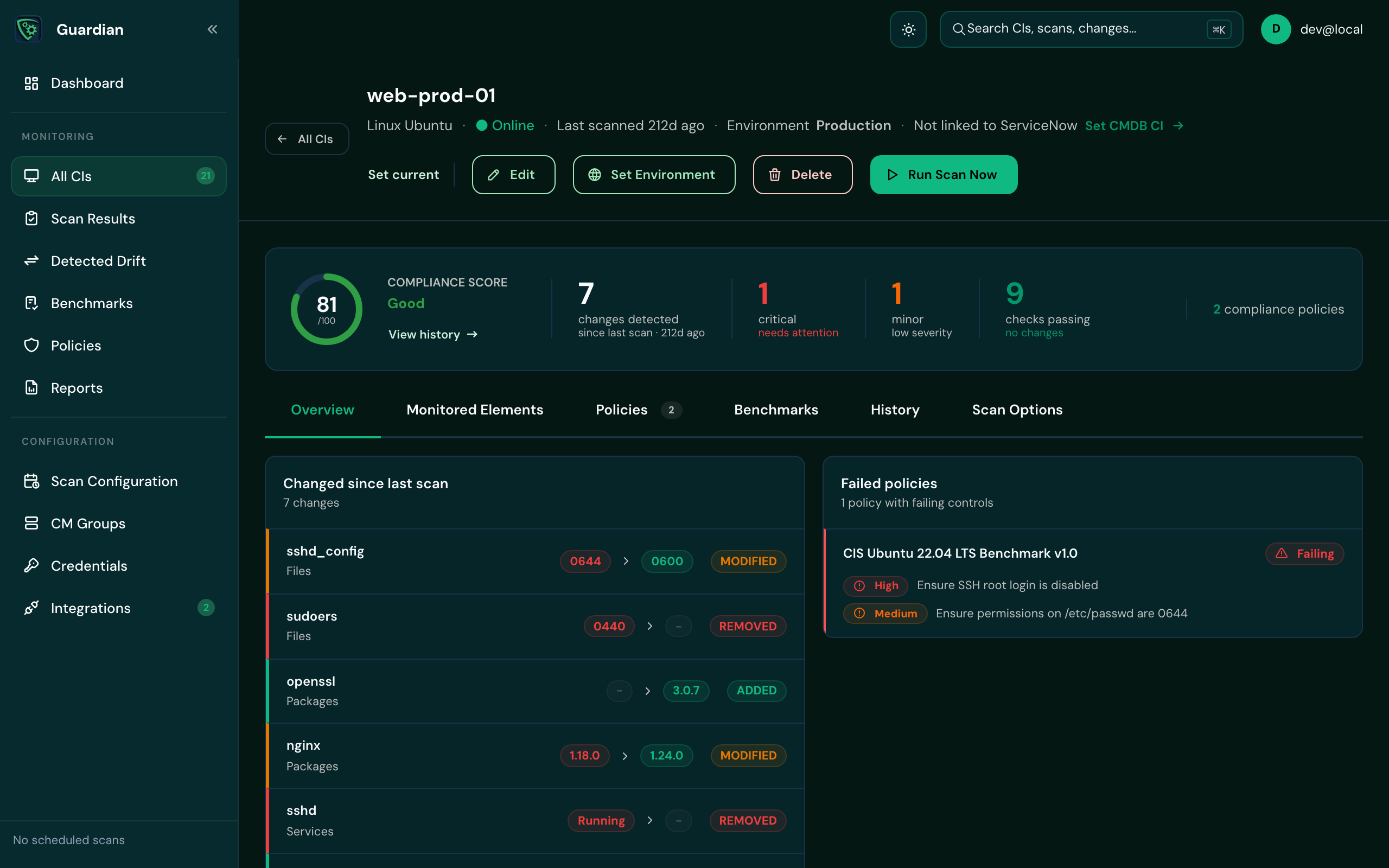
The header shows whether the CI is online, when it was last scanned, its environment and whether it's linked to ServiceNow. Below it, a summary gives the compliance score and the changes and issues found. The tabs hold the detail:
| Tab | What it shows |
|---|---|
| Overview | What changed since the last scan, and the policies the CI is failing. |
| Monitored Elements | What the latest scan recorded, element by element. Expand an element to see its properties. |
| Policies | How the CI fared against each policy on its most recent scan. |
| Benchmarks | Benchmark results, once a benchmark is assigned to one of the CI's groups and its schedule has run. |
| History | Every scan of this CI. Pick one to view it as it was; Return to latest takes you back. |
| Scan Options | What Guardian scans on this CI. |
If the last scan failed, the reason is shown at the top.
Things you can do#
- Scan it now
- Select Run Scan Now. The scan is queued and runs shortly.
- Compare scans
- Select Compare with previous scan, or pick two scans from the history, to see every property that differs.
- Set a baseline
- Pin the scan you're viewing as this CI's known-good state with Set as baseline. A CI has one baseline, so setting a new one replaces the old. You can set it for several CIs at once from All CIs.
- Set its environment
- Select Set Environment to move the CI to another environment, or create a new one from the same dialog.
- Link it to a CMDB CI
- Select Set CMDB CI beside Not linked to ServiceNow, and search your ServiceNow CMDB by name or IP address. This needs the ServiceNow integration. Unlink CMDB CI removes the link.
Good to know
Benchmarks are assessed on their own schedule, not with each scan. A newly assigned benchmark shows no results for a CI until that schedule has run.