
Add a GCP node#
Add a Google Cloud Platform resource for agentless scanning. Guardian supports multiple types of Google Cloud Platform (GCP) nodes. For example, you can add GCP Compute Engine VM Configuration nodes, GCP Storage Bucket nodes, GCP Kubernetes Engine nodes, and more.
Applies to: Guardian Classic
Note
Additionally, you can import GCP nodes in bulk rather than individually, as the below process describes. For more information, see Add Nodes in Bulk via GCP.
Dependencies#
To add a GCP node, the following dependencies must be met:
- Linux Connection Manager – Set up in Guardian. For more information, see Linux Connection Manager.
- Google Service Account – Set up with the JSON Web Token (JWT) generated. For more information, see Google Cloud Platform Service Account.
- Service Permissions – Permissions set for the service intended to be scanned. For more information, see Supported GCP Services.
Add a GCP node#
Adding a GCP node to your Guardian instance lets you monitor and track the configuration of a GCP resource.
To add a GCP node for Agentless scanning, complete the following steps:
-
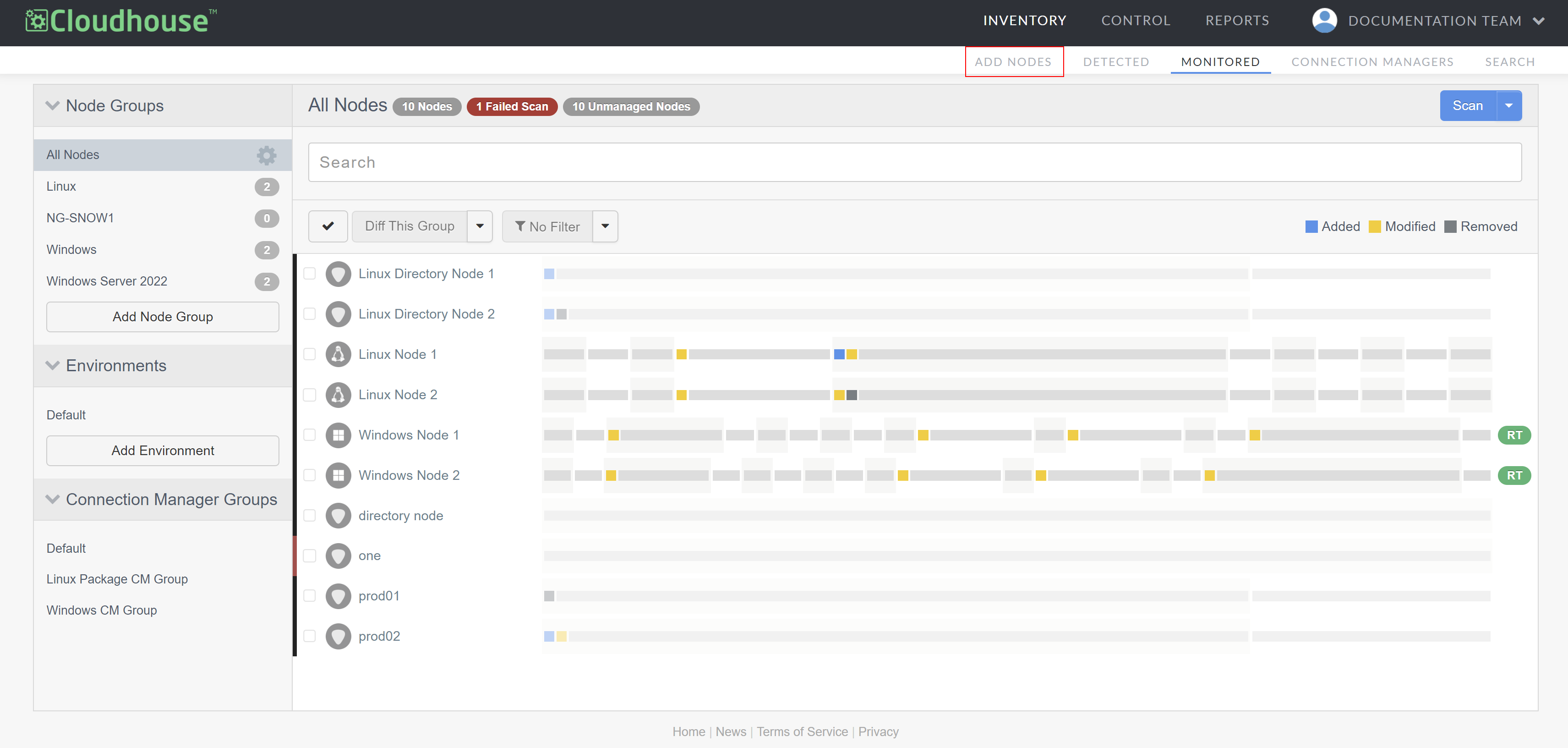
In the Guardian web application, navigate to the Add Nodes tab (Inventory > Add Nodes). The Add Nodes page is displayed.
-
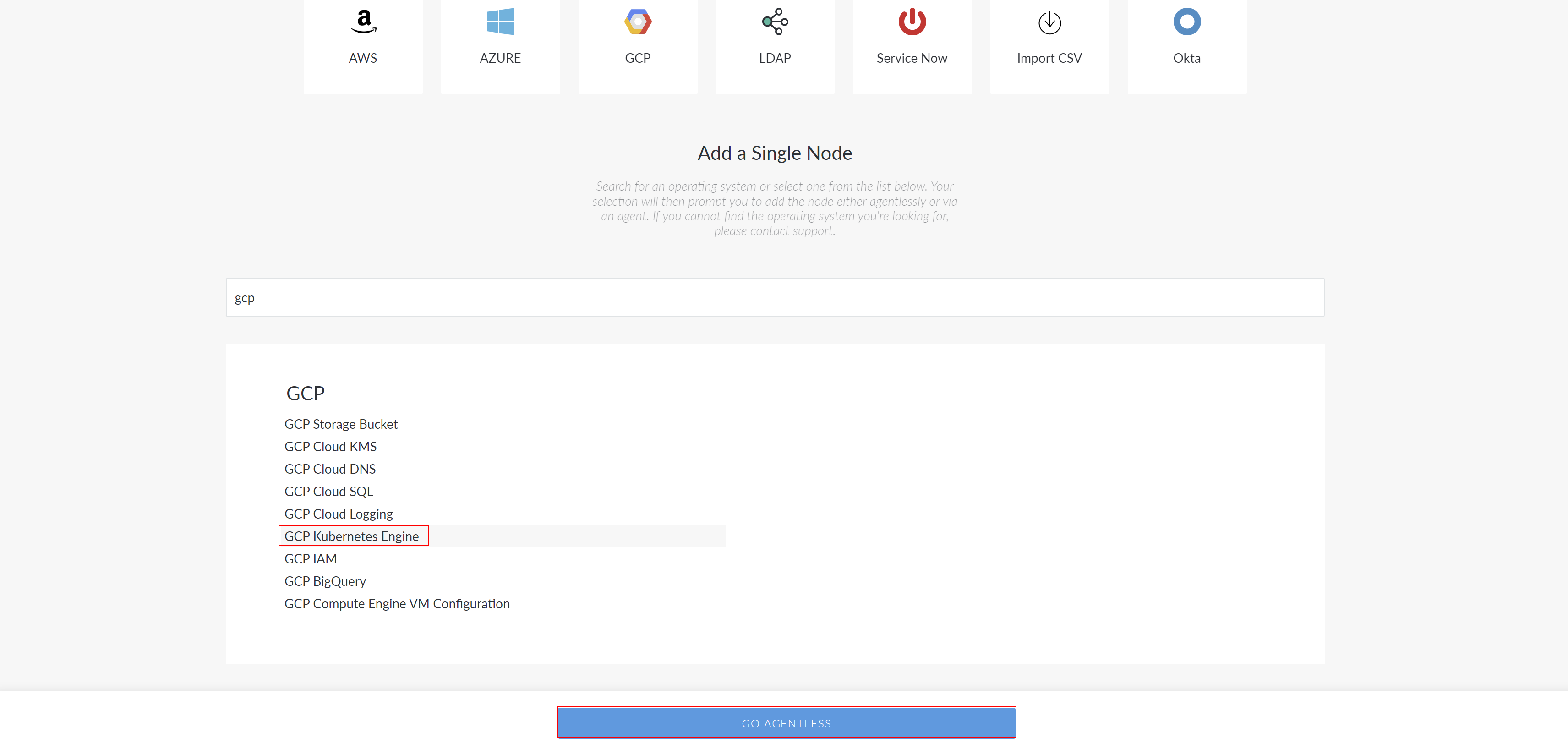
Type 'GCP' in the search bar.
-
Select the 'GCP' node type you want to add and click the Go Agentless button to proceed. The Connect Agentlessly to [Node Type] page is displayed.
-
Here, complete the following options:
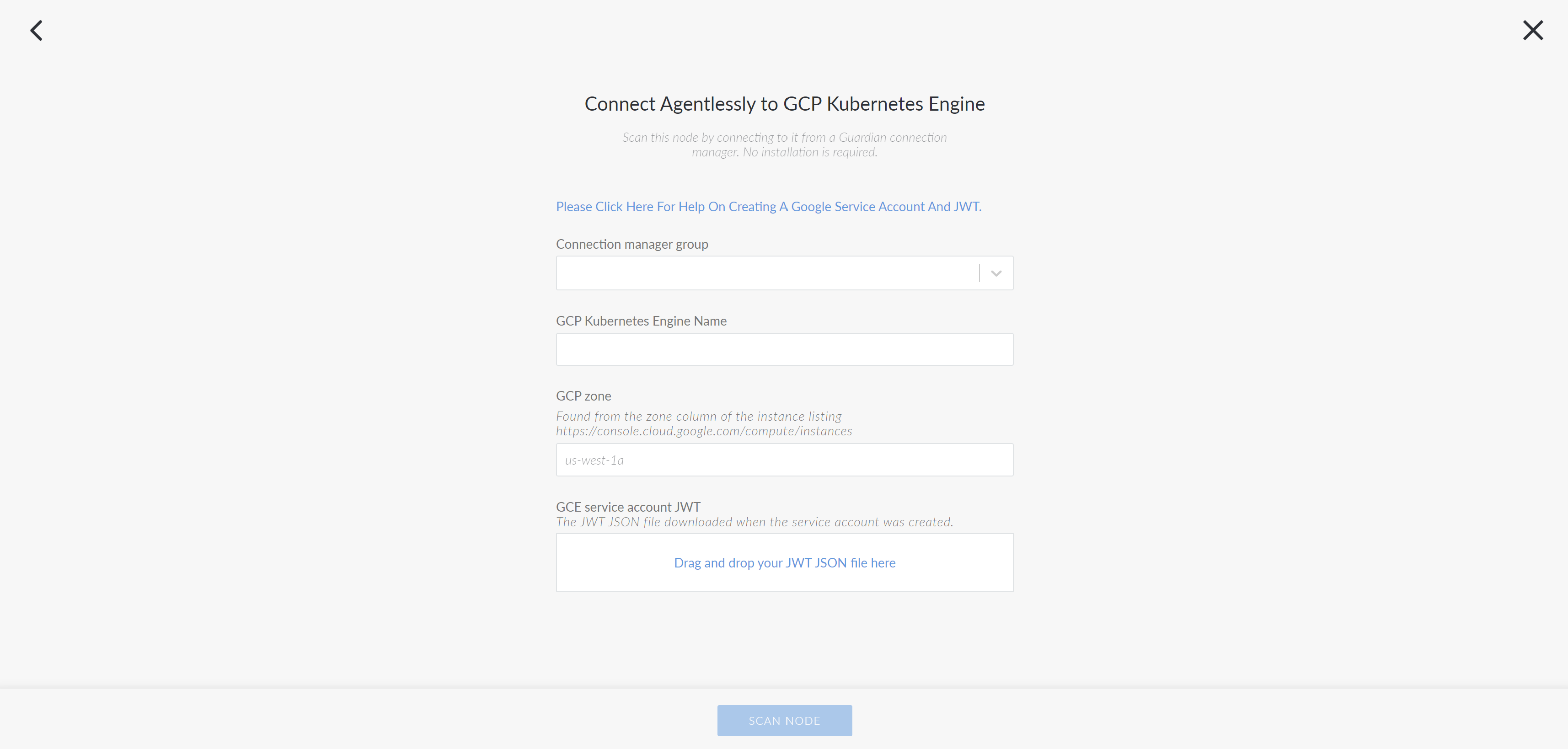
- Connection Manager group drop-down list
- The Connection Manager group that is responsible for scanning your GCP node. Select a Connection Manager group from the drop-down list.
- [Node Type] Name field
-
The name of the node. The value you enter here will be used as the display name in Guardian.
Note
The name of this field changes depending on the GCP node type you select. For example, for 'GCP Kubernetes Engine' node, this field would be labeled 'GCP Kubernetes Engine'.
- GCP zone field
- The zone in which the service is hosted. For more information on how to source this, see Google Cloud Platform Service Account.
- GCE service account JWT field
- The JSON Web Token that is required to authenticate the Google Service Account. For more information on how to source this, see Google Cloud Platform Service Account.
- Once you've completed the above options click Scan Node to add the GCP node to your Guardian instance.
Now, Guardian performs an initial scan of the node. You can wait on this page for the scan to finish, at which point you will see a View Scan button. To view the results of this initial scan, click View Scan. However, you can also navigate elsewhere while Guardian performs its initial scan of the node. You can then view the status of the scan on the Job History page (Inventory > Job History). For more information on what to do next after adding a node, see below.
Where next#
- Read Node Scan Results What every scan of a node collected.
- Organise Node groups Group nodes by type, location and more.
- Tune Scan options Choose what each scan collects.
- Compare Configuration differencing Compare nodes, groups and scans.
- Govern Policies Define the configuration you expect.
- Connect Integrations Sync nodes and act on events.