
Add an Office 365 Exchange node#
Add Office 365 Exchange for agentless scanning. There are several supported types of Cloud App nodes, including Office 365 Exchange nodes.
Applies to: Guardian Classic
Dependencies#
To add an Office 365 Exchange node, you need:
- A Windows Connection Manager configured in Guardian. For more information, see Windows Connection Manager.
- Administrator access and credentials to an Office 365 Exchange account.
Add an Office 365 Exchange node#
To monitor the accounts and settings present in an instance of Office 365 Exchange, you'll add it as an Office 365 Exchange node in Guardian. This lets you keep track of Office 365 users, user settings, permissions, and more.
To add an Office 365 Exchange node:
-
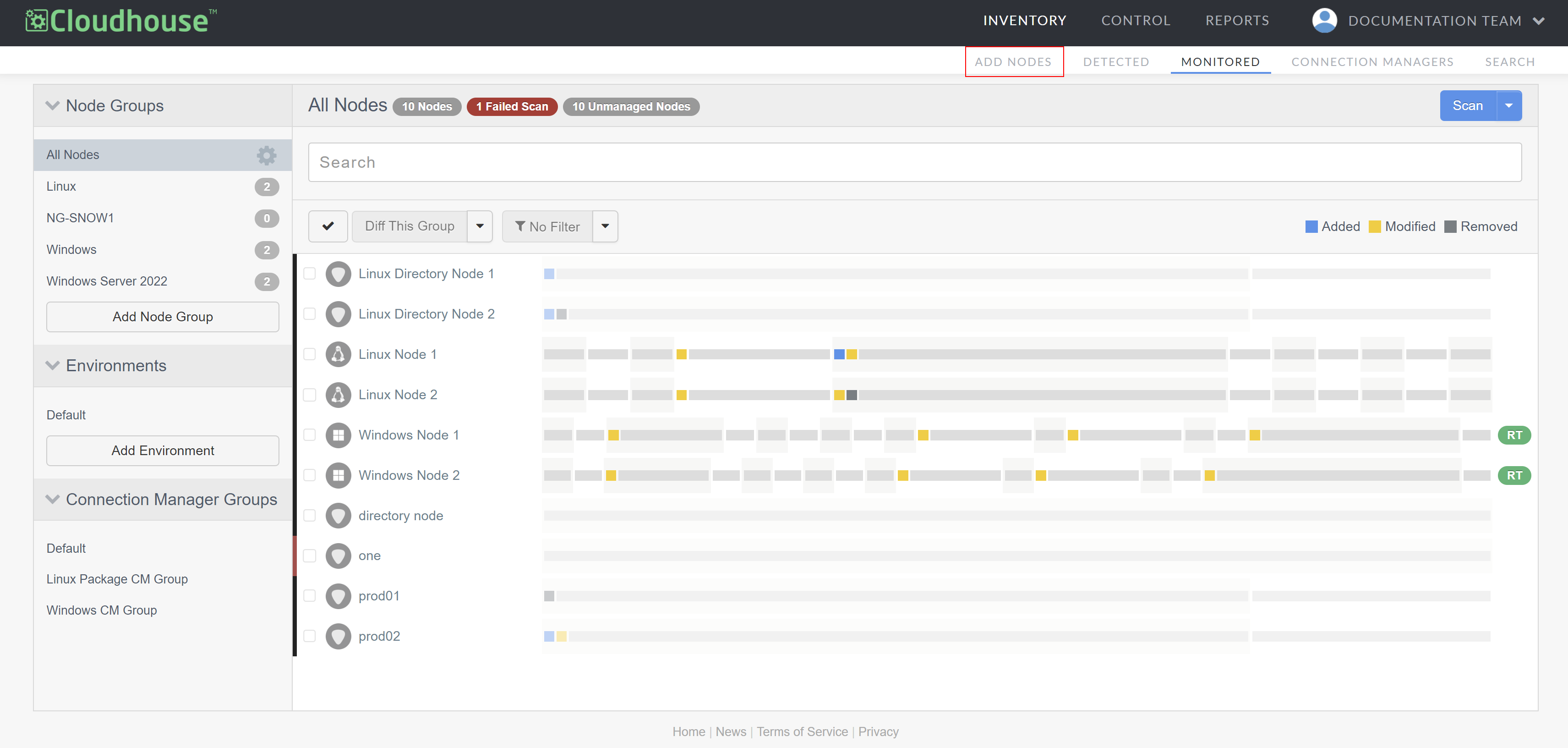
In the Guardian web application, navigate to the Add Nodes tab (Inventory > Add Nodes). The Add Nodes page is displayed.
-
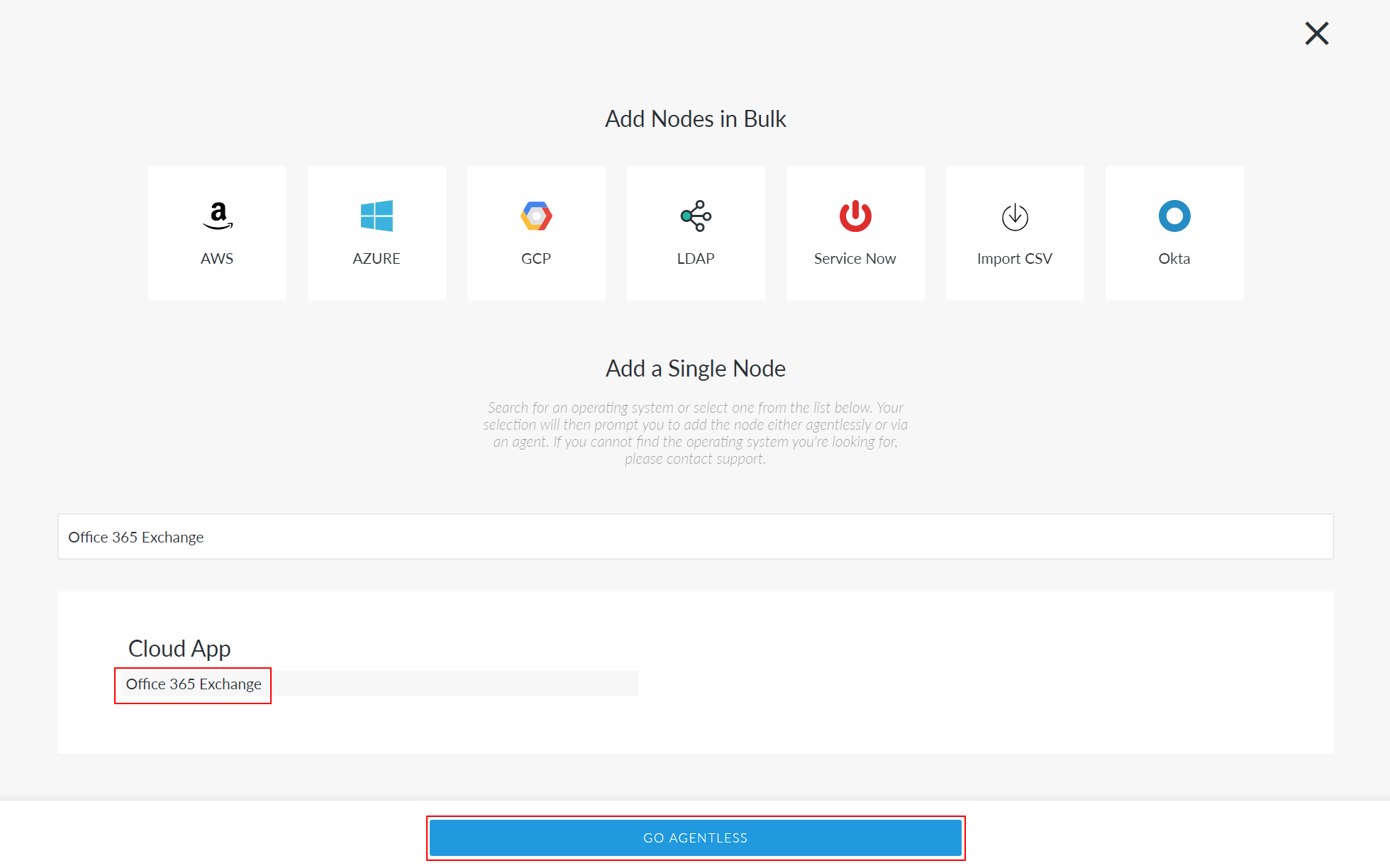
Type 'Office 365 Exchange' in the search bar.
-
Select Office 365 Exchange. Then, click Go Agentless. The Connect Agentlessly to Office 365 Exchange page is displayed.
-
Complete the following options:
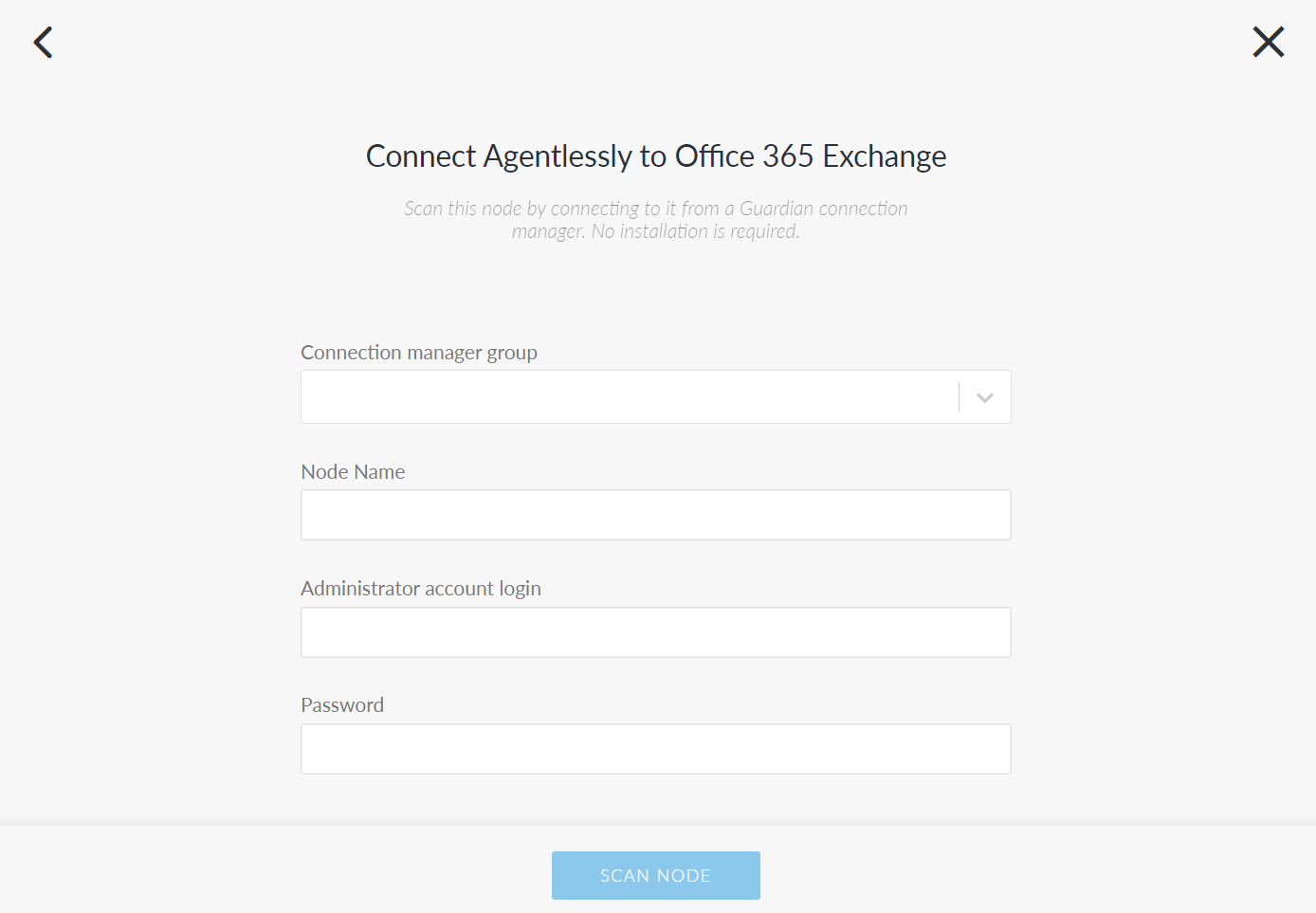
- Connection manager group drop-down list
- The Connection Manager group responsible for scanning your Office 365 Exchange node. Select a Connection Manager group from the drop-down list.
- Node Name field
- The name of the node. The value you enter here will be used as the display name in Guardian.
- Administrator account login field
- The username for the administrator account associated with the Office 365 Exchange instance you're connecting to.
- Password field
- The password for the administrator account associated with the Office 365 Exchange instance you're connecting to.
- Click Scan Node.
Now, Guardian performs an initial scan of the node. You can wait on this page for the scan to finish, at which point you will see a View Scan button. To view the results of this initial scan, click View Scan. However, you can also navigate elsewhere while Guardian performs its initial scan of the node. You can then view the status of the scan on the Job History (Control > Job History) page. For more information on what to do next after adding a node, see below.
Where next#
- Read Node Scan Results What every scan of a node collected.
- Organise Node groups Group nodes by type, location and more.
- Tune Scan options Choose what each scan collects.
- Compare Configuration differencing Compare nodes, groups and scans.
- Govern Policies Define the configuration you expect.
- Connect Integrations Sync nodes and act on events.